Documentation · Jira Cloud · Toine.com B.V.
Work Item Aging for Jira
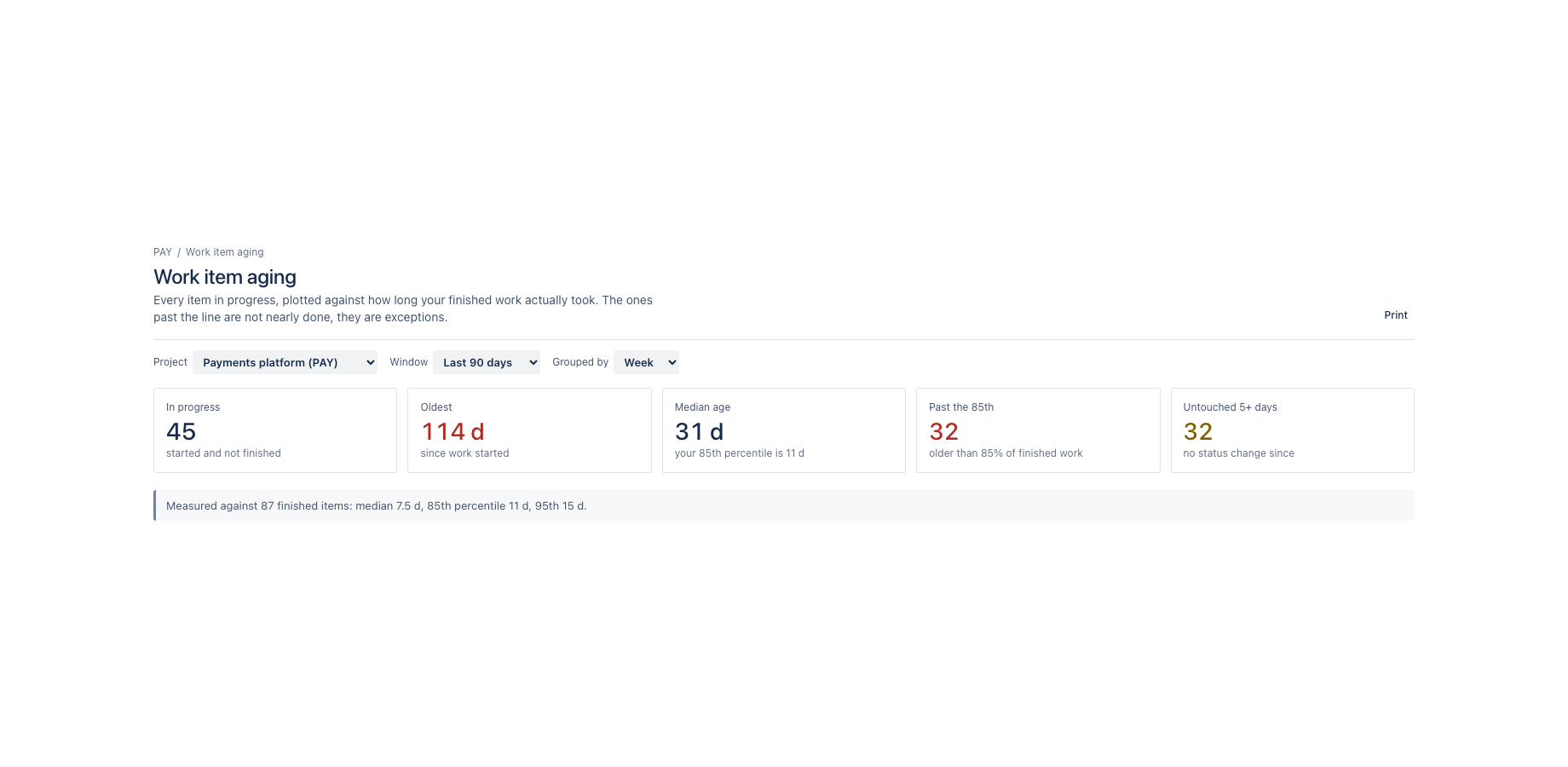
How long everything in progress has been running, measured against the percentiles of work you already finished. The items past the 85th are not nearly done, they are exceptions that need a decision today.
Marketplace listing · 30 day free trial, paid via Atlassian · Support: contact@toine.com · Updated 2026-10-07
What it does
Work Item Aging for Jira is the one chart that changes what happens in a stand-up.
Everything in progress right now, laid out by how long it has been running, against the percentiles of the work this team already finished. An item sitting past the 85th percentile is not nearly done. It is behaving differently from almost everything else the team has delivered, and it needs a decision today rather than another day of silence.
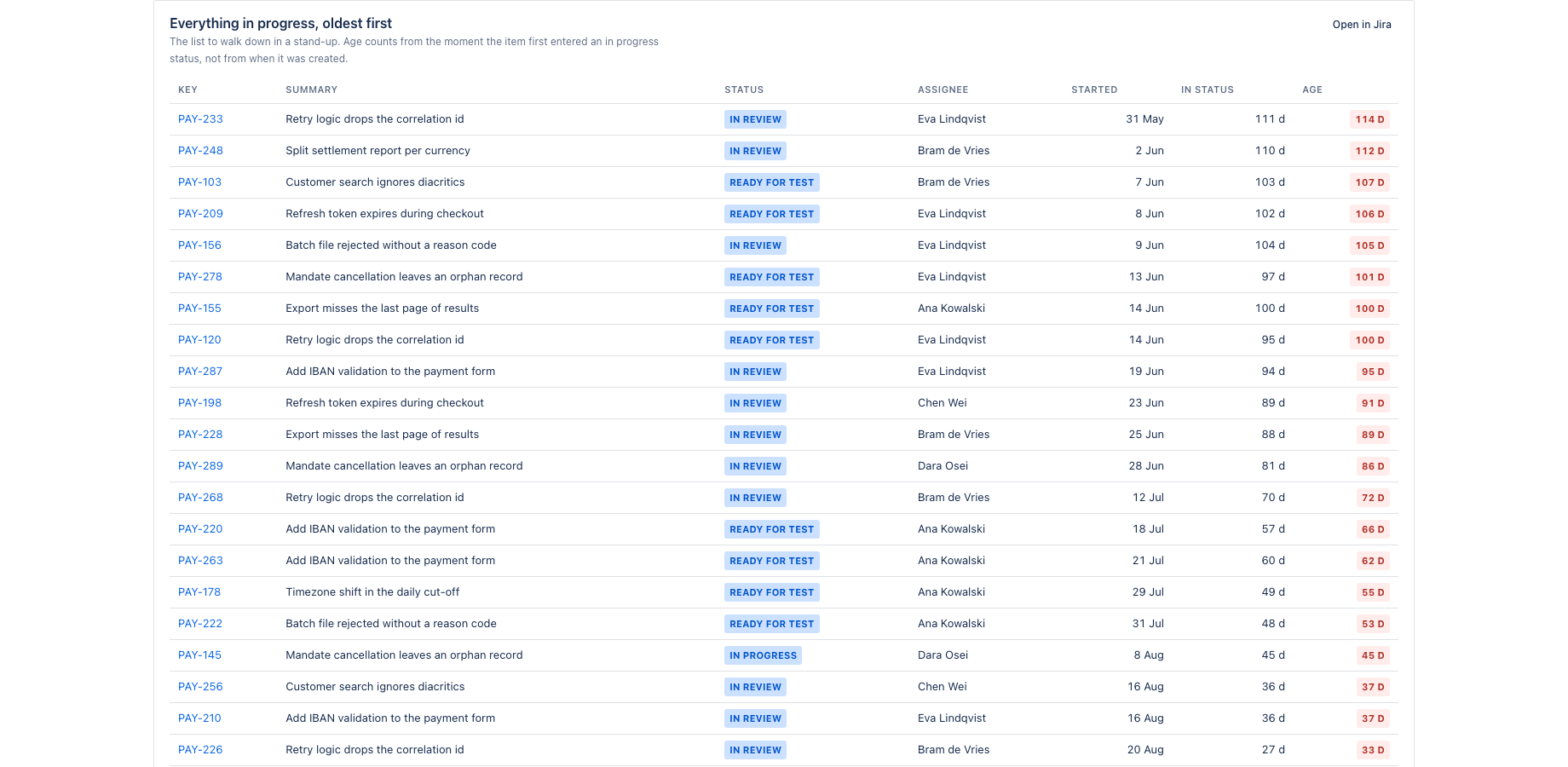
Age is measured from the moment an item first entered a status in the In Progress category, read from the changelog, not from the day it was created. A ticket that sat in the backlog for three months and was picked up yesterday is one day old, which is the only honest way to read it.
Works with Jira Cloud, company-managed and team-managed projects, and with whatever board or workflow you already have: it reads ordinary work items and their status history.
Demo video
About a minute: the core features and the user flow, recorded in the app's demo mode with sample data from a fictional payments team. Every step carries a caption. Work Item Aging: everything in progress, aged against how long finished work actually took.
Key features
Aged against your own history, not round numbers
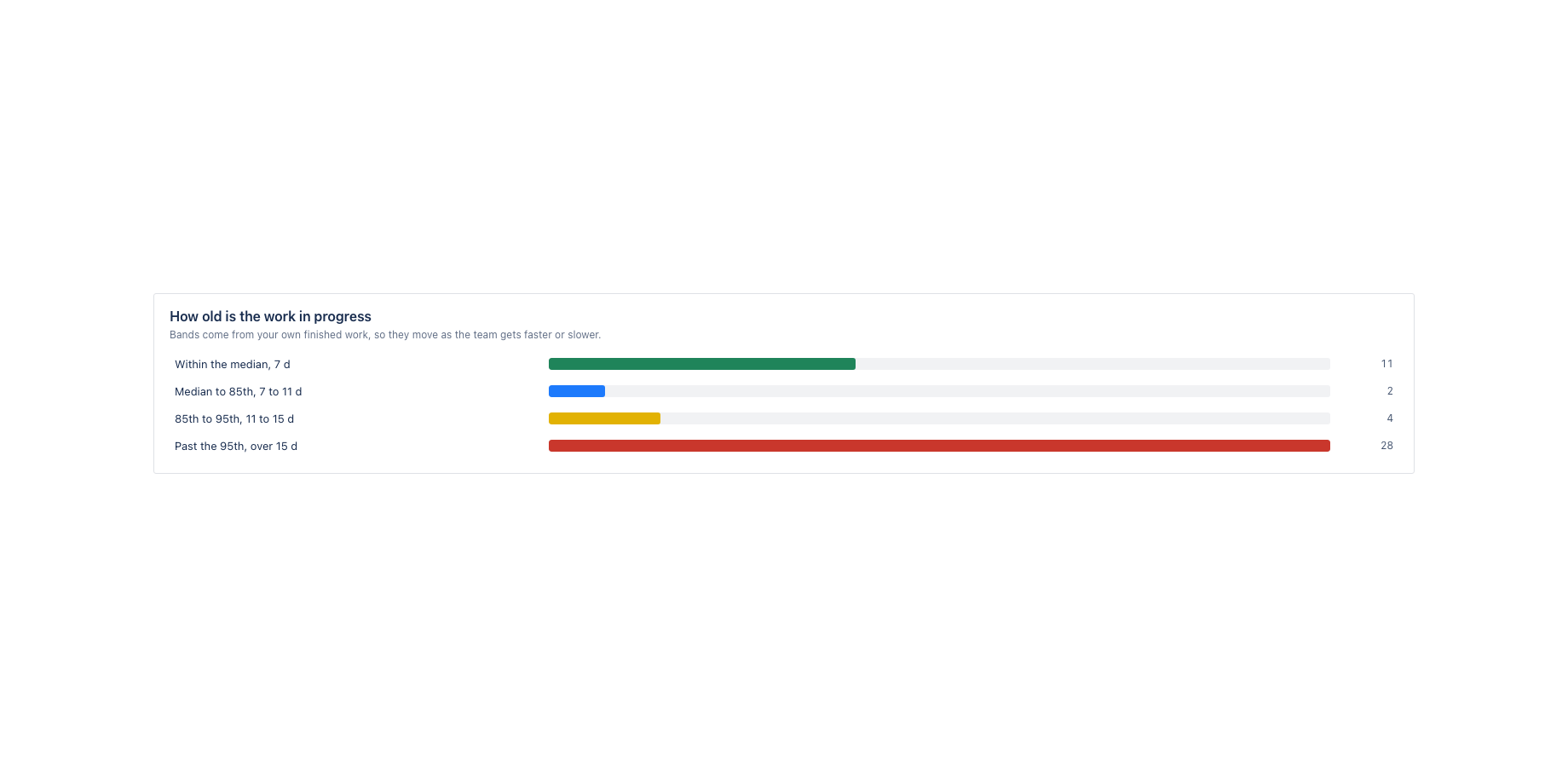
Bands come from the cycle times this team actually achieved, so the line moves as the team gets faster or slower. No arbitrary seven day threshold that means nothing in your context.
Old and untouched are different problems
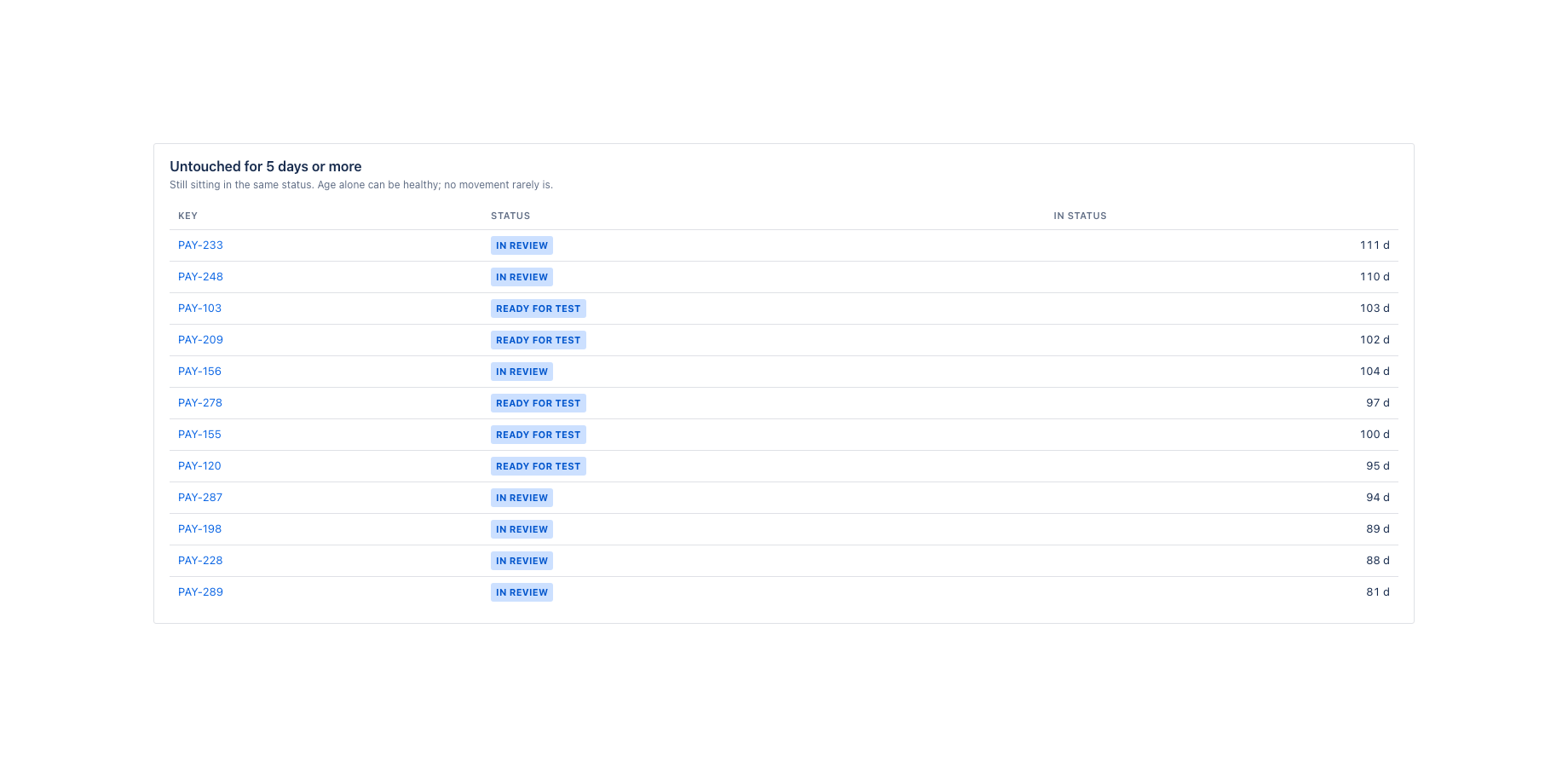
Age counts from the moment work started. Time in status counts since the last move. An item can be old and healthy; an item that has not moved in a week rarely is, and both are listed separately.
The list to walk down in a stand-up
Oldest first, with status, owner, the day work started and how long it has sat where it is. One screen, no configuration, and every row opens the work item.
Four bands, named after your own numbers: within the median, median to the 85th, 85th to the 95th, and past the 95th. When there is not enough finished work to learn from yet, the bands fall back to fixed days and say so.
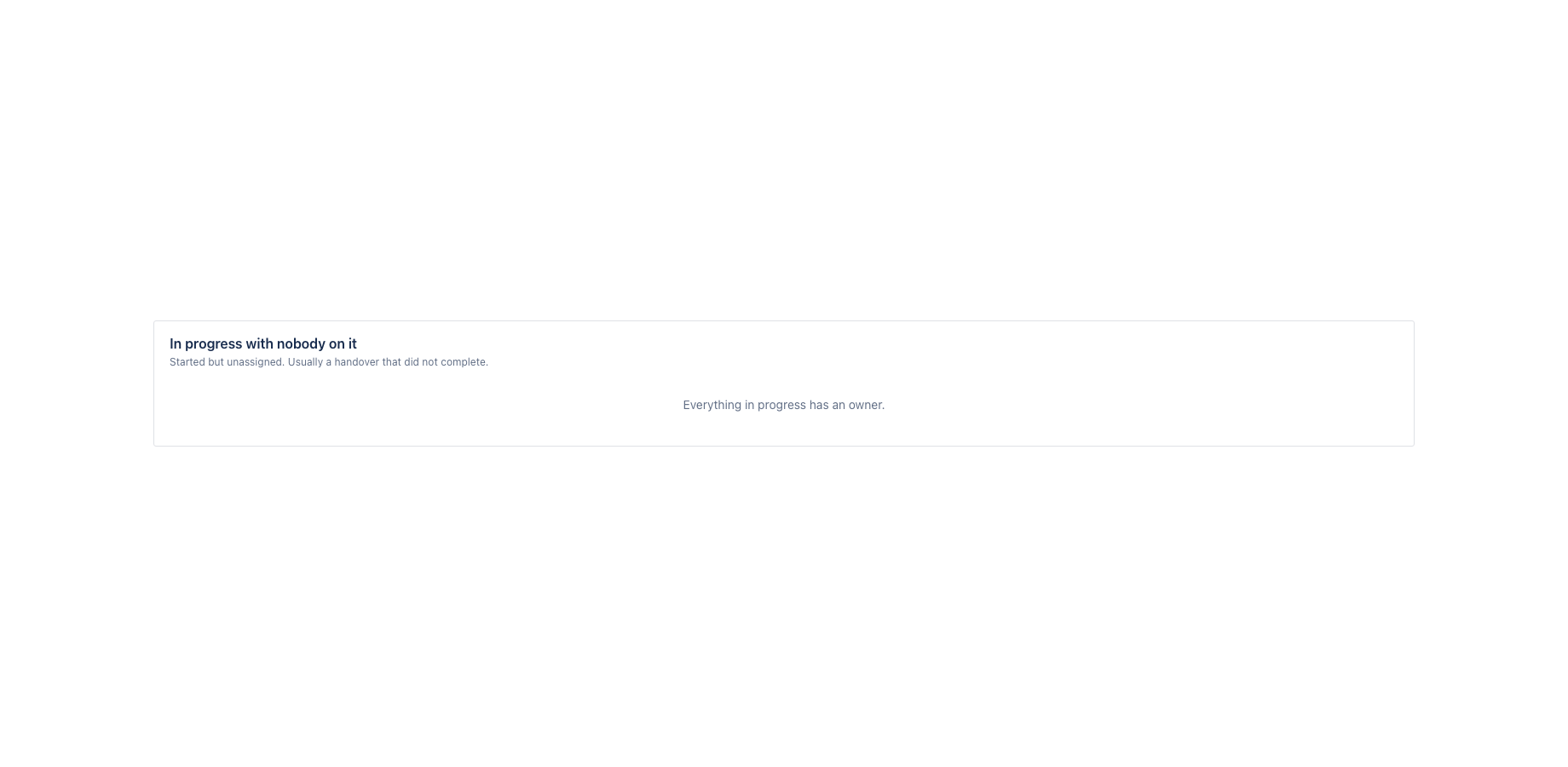
Next to age it shows time in the current status, because old and stuck are different problems. An item can be legitimately old and moving steadily; an item that has not changed status in five days is waiting on something, and that something is usually a person. Both lists are there, along with everything in progress that has nobody assigned to it, which is almost always a handover that did not complete.
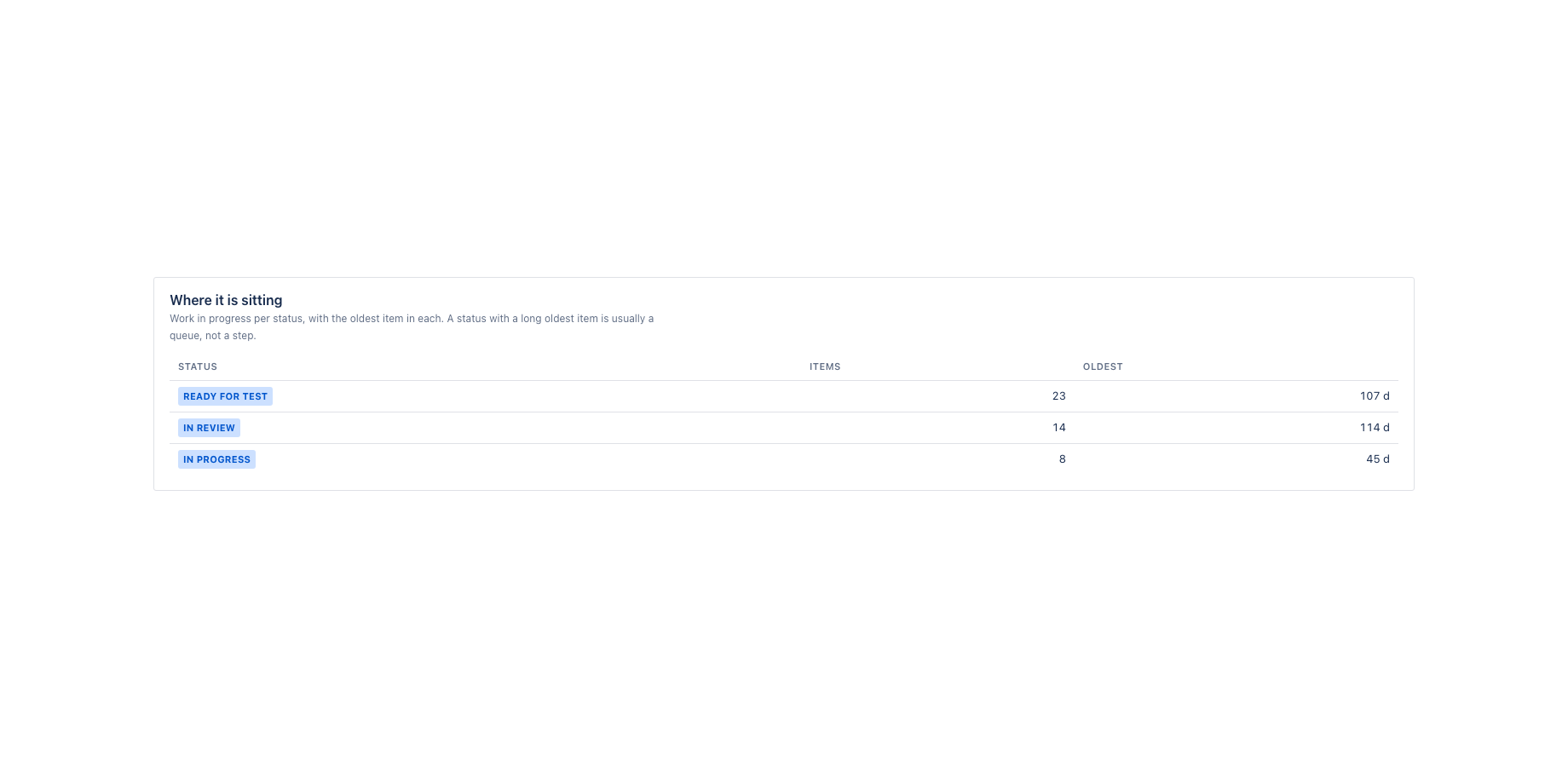
Work in progress is also broken down per status, with the oldest item in each. A status with a very old item at the top is a queue rather than a step, and it is the first place to look when cycle times drift.
Scope is a project or any JQL query, over 30, 60, 90, 180 or 365 days, and the window decides which finished work the percentiles are learned from. Every number and every band opens the work items behind it.
Where it appears in Jira
- Project page
- Work item aging in the sidebar of every project.
- Global page
- Apps, Work Item Aging: a project key or any JQL query, across projects.
- Dashboard gadget
- Work Item Aging gadget with the headline numbers for one project or JQL query.
Install and set up
Before you start
A Jira project with work items that moved into a status of the In Progress category and on to a Done status inside the window you choose. New or empty projects show the page with a clear message that there is no finished work yet.
Install
- In Jira, open Apps in the top bar and choose Explore more apps. Search for Work Item Aging for Jira and click Try it free. You need to be a Jira site administrator.
- Review the permissions. The app asks for
read:jira-work,read:jira-user,storage:app. It cannot create, change or delete anything in Jira. - The 30 day trial starts on install. Billing after the trial is per user through Atlassian; nothing is charged if you uninstall before the trial ends.
Set up
- Open a Jira project. In the project sidebar, click Work item aging. The page computes straight away from the status history Jira already keeps; there is no sync or import step.
- At the top of the page choose the window (30, 60, 90, 180 or 365 days) and the grouping (week or month). The choice is remembered per project.
- For a view across projects, open Apps in the top bar and choose Work Item Aging. Enter a project key or any JQL query.
- For a dashboard, open a Jira dashboard, click Edit, then Add gadget, search for Work Item Aging and add it. Set the project or JQL in the gadget configuration.
Using the app
The steps below follow the demo video, in the same order.
- Choose the project, the window and the grouping; everything on the page recomputes
- Headline: in progress, oldest, median age, past the 85th percentile, untouched for five days
- Age bands from your own percentiles, and where the work is sitting per status
- Everything in progress, oldest first: the list to walk down in a stand-up
- Untouched for five days or more, and work in progress with nobody on it
- Every list opens the same selection in Jira, and the page prints cleanly for a report
Verify it works
A short test script. Each step names what to do and what you should see. Together they cover every module of the app.
| # | Do this | Expected result |
|---|---|---|
| 1 | Open the Work item aging tab on a project with work in progress. | The headline shows items in progress, the oldest, the median age, the number past the 85th percentile and the number untouched for five days. |
| 2 | Compare the in-progress count with the JQL project = KEY AND statusCategory = "In Progress". | The count matches. |
| 3 | Open Everything in progress. | Oldest first, with status, assignee, start date and time in the current status. Age is counted from the first move into an In Progress status, not from creation. |
| 4 | Move a backlog item that was created months ago into In Progress and reload. | It appears with an age of 0 days. |
| 5 | Clear the assignee of an in-progress item and reload. | It appears under Nobody assigned. |
| 6 | Open the tab on a project with almost no finished work. | The age bands fall back to fixed days and the page says so. |
Screenshots
Permissions and data
Scopes and why
- read:jira-work: read work items, their fields and their changelog to work out when each item started and how long it has been running.
- read:jira-user: show assignee display names.
- storage:app: keep the chosen project, window and grouping per project on the customer's site.
What the app stores
The chosen project, window and grouping per project. No work item content.
Everything is stored in Forge app storage on your own Atlassian site and removed under the Forge storage lifecycle when you uninstall. The app calls no external service, sends nothing out of Atlassian and uses no analytics. Data residency follows your site.
More in the privacy policy and the security policy for the apps.
Pricing, trial and support
Paid via Atlassian, per user, monthly or yearly, with a 30 day free trial. The current price for your user tier is on the Marketplace listing. Billing, invoices and cancellation run through your Atlassian site administration.
Questions, bugs and feature requests go to contact@toine.com. I answer within two working days, Monday to Friday, CET. Please add your site URL, the app name and a screenshot. Security issues go first: put "security" in the subject line. Terms are on the terms and licence page.