Documentation · Jira Cloud · Toine.com B.V.
Release Readiness for Jira
One page per release: which criteria are met, at risk or not met, which work carries no test evidence, what nobody examined, and who decided what on which evidence. No readiness percentage, no writes to your issues.
Marketplace listing · 30 day free trial, paid via Atlassian · Support: contact@toine.com · Updated 2026-10-07
What it does
Release Readiness for Jira answers the question a steering committee asks before every go-live: what did we check, what did we find, and what did we not look at?
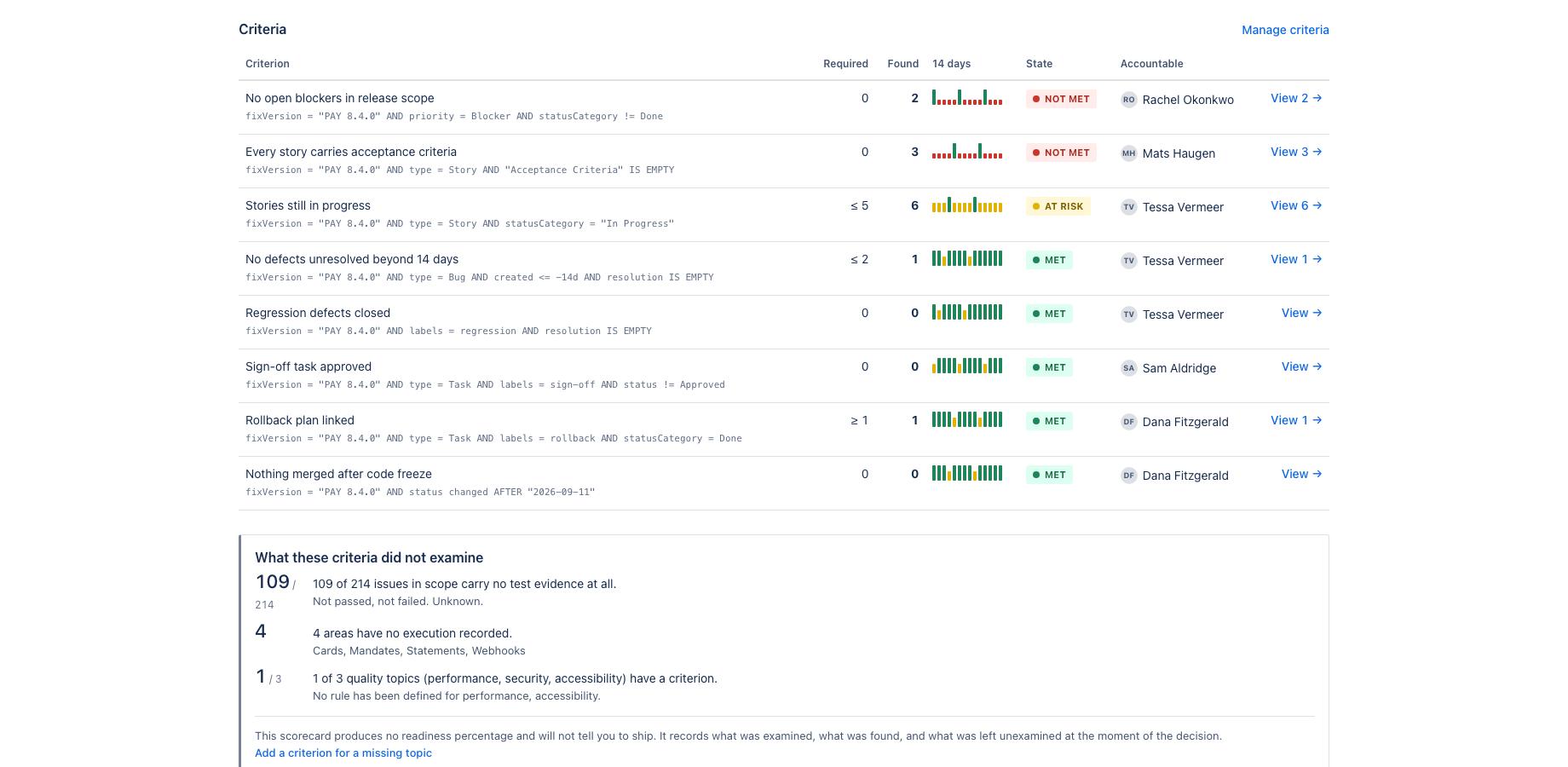
It reads the releases (fix versions) of a project and evaluates your criteria against live Jira data. A criterion is a JQL rule with a threshold, such as "no open blockers", "every story has acceptance criteria" or "no defect older than 14 days", with a named accountable owner. Each one is met, at risk or not met, and each opens the issues behind it.
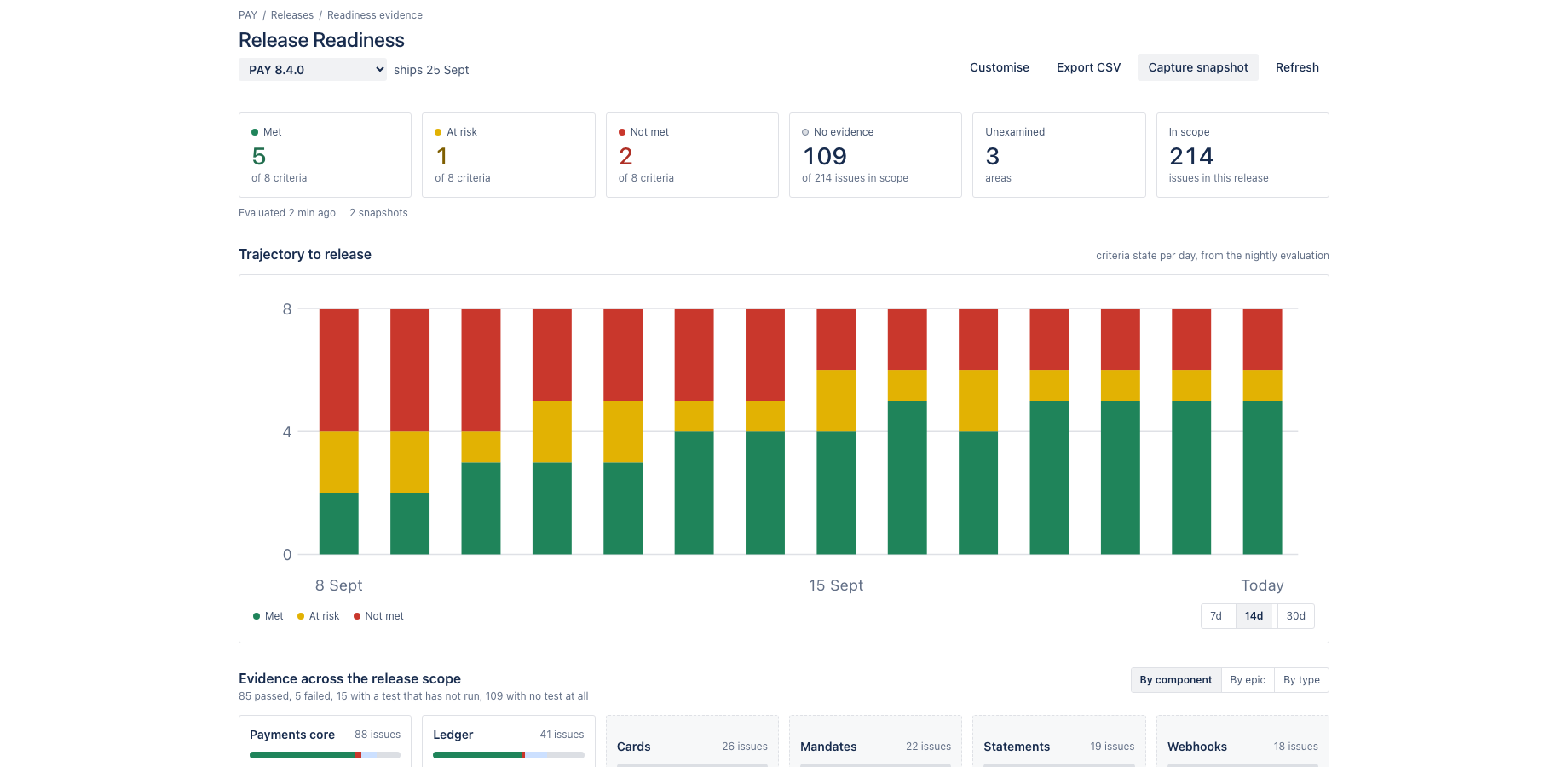
Below the criteria sits the evidence grid: every issue in scope, grouped by component, epic or issue type, with its linked tests shown as passed, failed or not run. Components with no test evidence at all are called out separately, and so are the quality topics no criterion covers. The trajectory chart shows how the criteria states moved over the last 7, 14 or 30 days.
Works with Jira Cloud. Test evidence is read from issue links of the type "tests" and "is tested by", which is how Xray, Zephyr and plain Jira test issues expose it, so no test tool integration is needed.
Demo video
About a minute: the core features and the user flow, recorded in the app's demo mode with sample data from a fictional payments team. Every step carries a caption. Release Readiness: a scorecard that records what was examined before a release decision.
Key features
Criteria that read like your definition of done
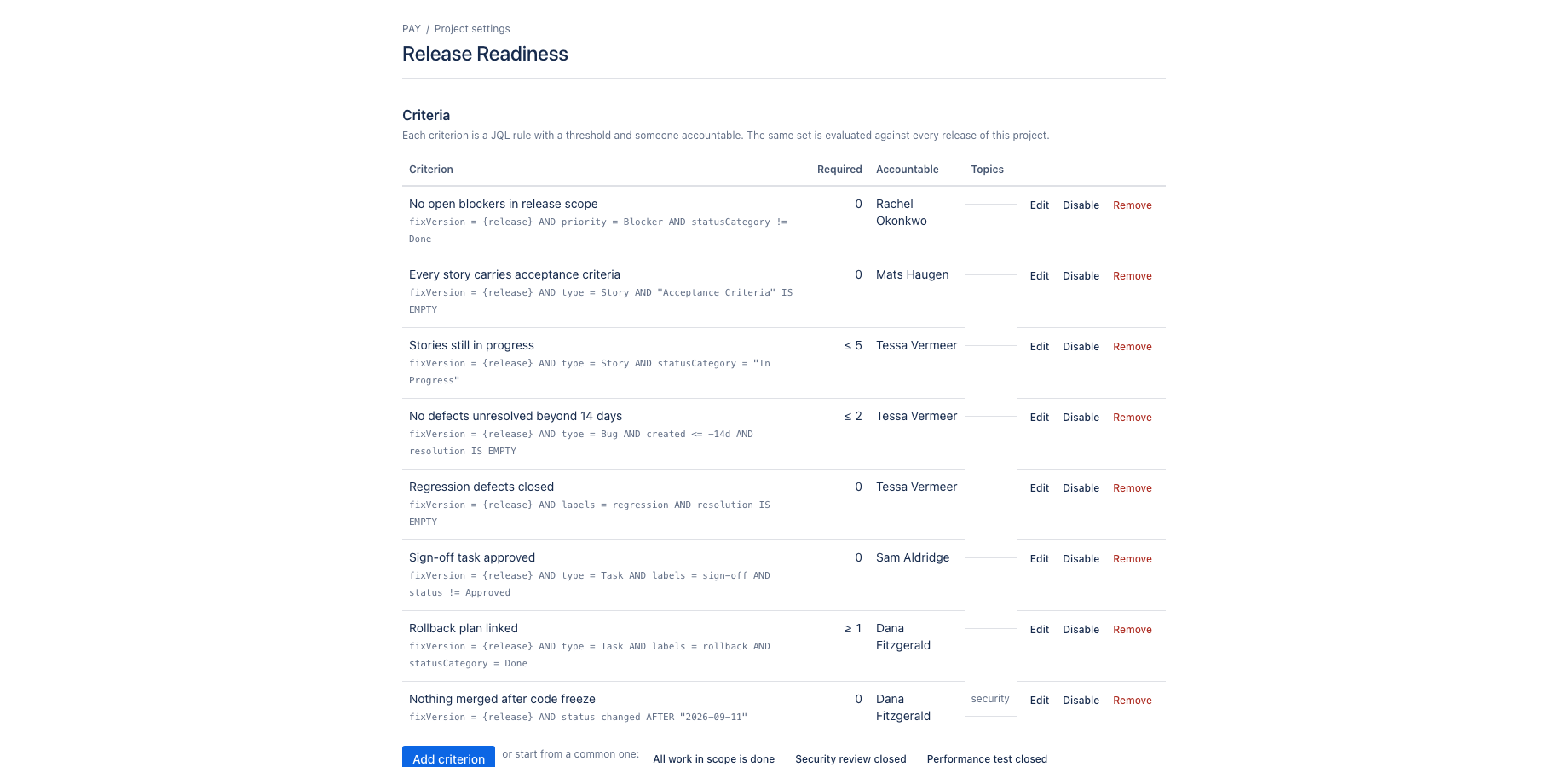
Each criterion is a JQL rule with a threshold and an accountable owner. Start from the seven most releases need and add your own. Every number opens the issues behind it.
The evidence you have, and the evidence you do not
The release scope is grouped by component, epic or type. Linked tests show as passed, failed or not run. Components with no test at all are marked as such, because "nothing failed" is not the same as "nothing was checked".
A decision record that cannot be quietly edited
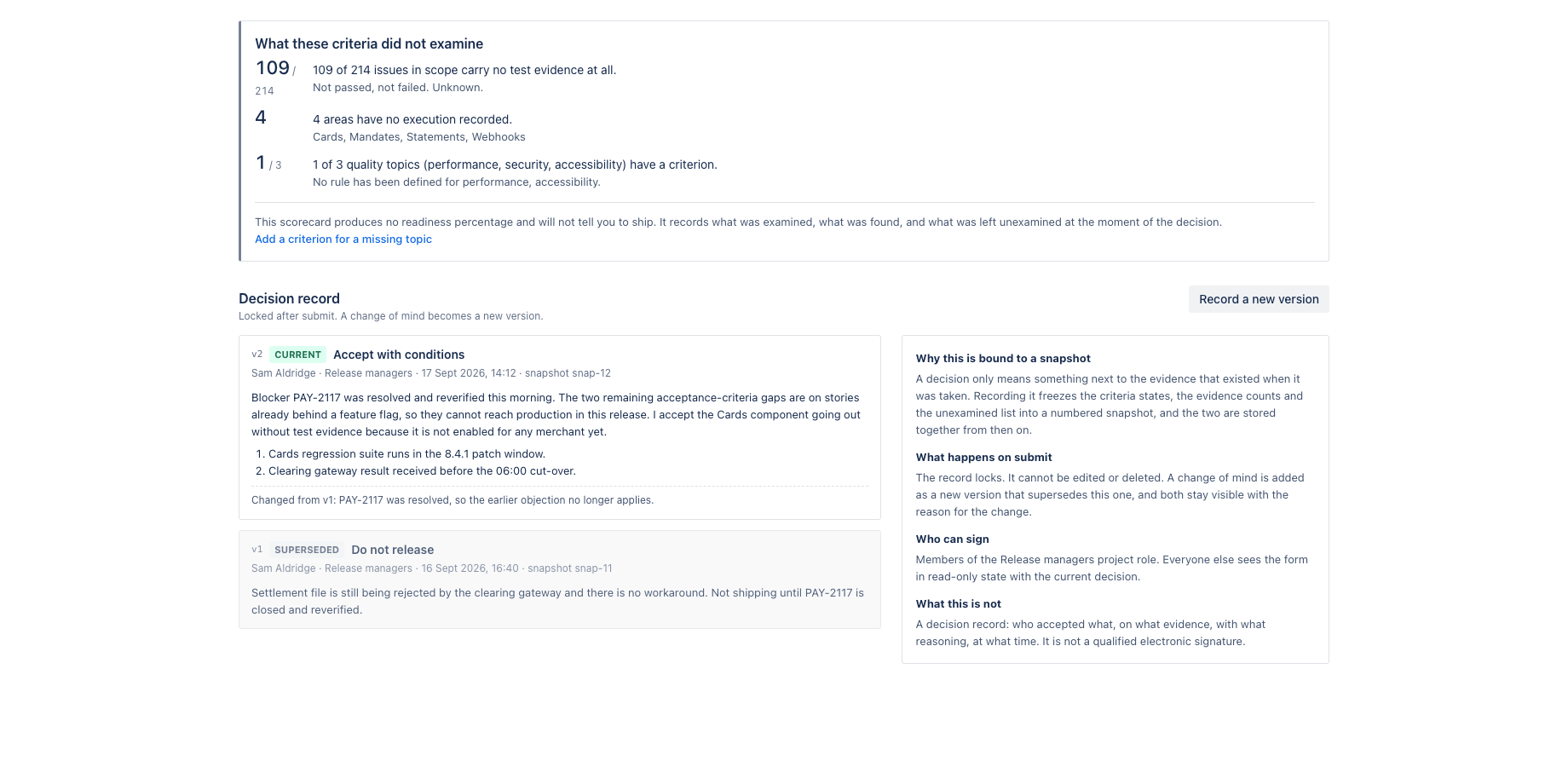
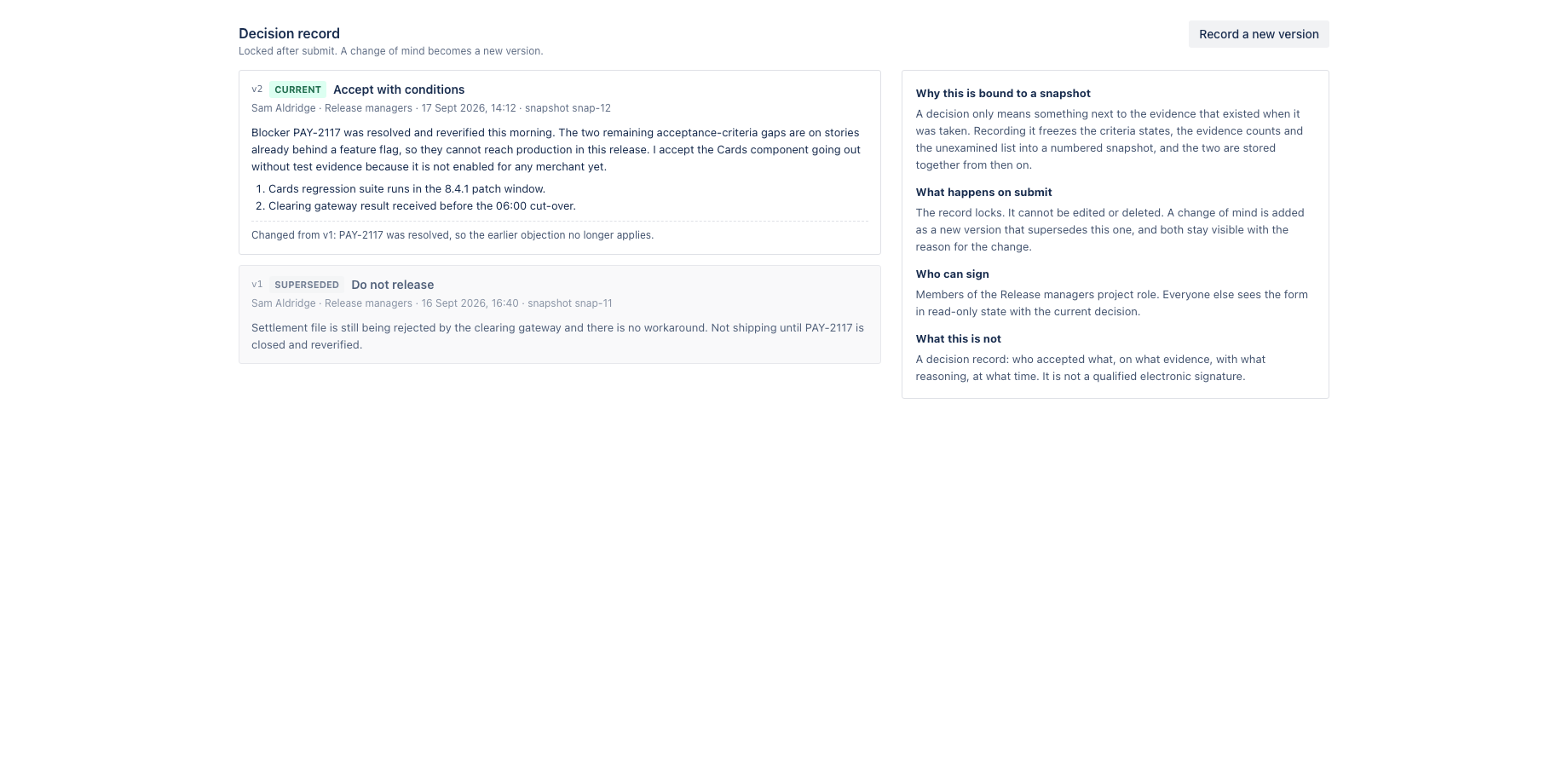
Accept, accept with conditions, or do not release, with reasoning, conditions and an acknowledgement of the unexamined areas. Bound to a snapshot of the evidence at that moment. Locked on submit; a change of mind becomes a new version.
When the decision is taken, it is recorded next to the evidence: the verdict, the reasoning, the conditions, an explicit acknowledgement of the unexamined areas, the signer and the time, bound to a numbered snapshot. Records lock on submit. A change of mind is a new version that supersedes the old one, and both stay readable.
What it does not do: it produces no readiness percentage and never tells you to ship. It writes nothing to your issues. It calls no external service and stores its own data in Forge storage on your site, which is why it qualifies for the Runs on Atlassian programme.
Where it appears in Jira
- Project page
- Release Readiness in the sidebar of every software project: the scorecard for one release.
- Project settings
- Project settings, Release Readiness: criteria, decision governance and project defaults.
- Dashboard gadget
- Release Readiness gadget: the headline per release for a steering committee dashboard.
- Global page
- Apps, Release Readiness: walk through several projects from one page.
Install and set up
Before you start
A Jira software project with at least one release (fix version) that has issues assigned to it. Test evidence is read from issue links of type tests and is tested by, which is how Xray, Zephyr and plain Jira test issues expose it. Without such links the scorecard still works; the evidence grid then marks the scope as having no test evidence.
Install
- In Jira, open Apps in the top bar and choose Explore more apps. Search for Release Readiness for Jira and click Try it free. You need to be a Jira site administrator.
- Review the permissions. The app asks for
read:jira-work,read:jira-user,storage:app. It cannot create, change or delete anything in Jira. - The 30 day trial starts on install. Billing after the trial is per user through Atlassian; nothing is charged if you uninstall before the trial ends.
Set up
- Open a software project and click Release Readiness in the sidebar. Pick a release in the selector at the top. The seven default criteria are evaluated against live Jira data at once.
- Go to Project settings, Release Readiness to adjust the criteria. Each criterion is a JQL rule with a threshold and an accountable role. Edit the defaults or add your own, for example no open blockers or no defect older than 14 days.
- On the same settings page set the decision governance: the project role whose members may sign a decision record. The default role is Release managers; project administrators and the project lead can always sign.
- Add the Release Readiness gadget to a dashboard if the steering committee wants the headline without opening the project.
Using the app
The steps below follow the demo video, in the same order.
- Pick the release; every criterion is evaluated against live Jira data
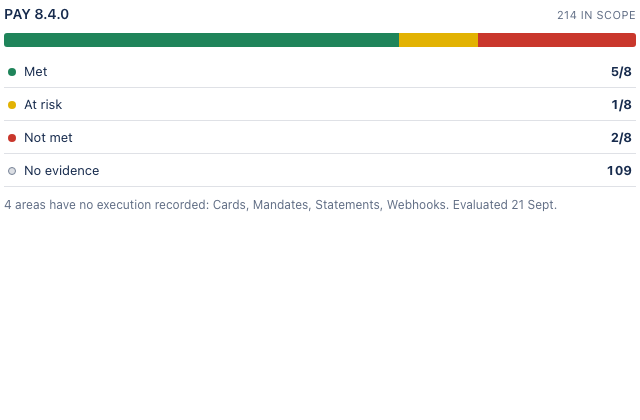
- Headline: criteria met, at risk and not met, plus what carries no evidence at all
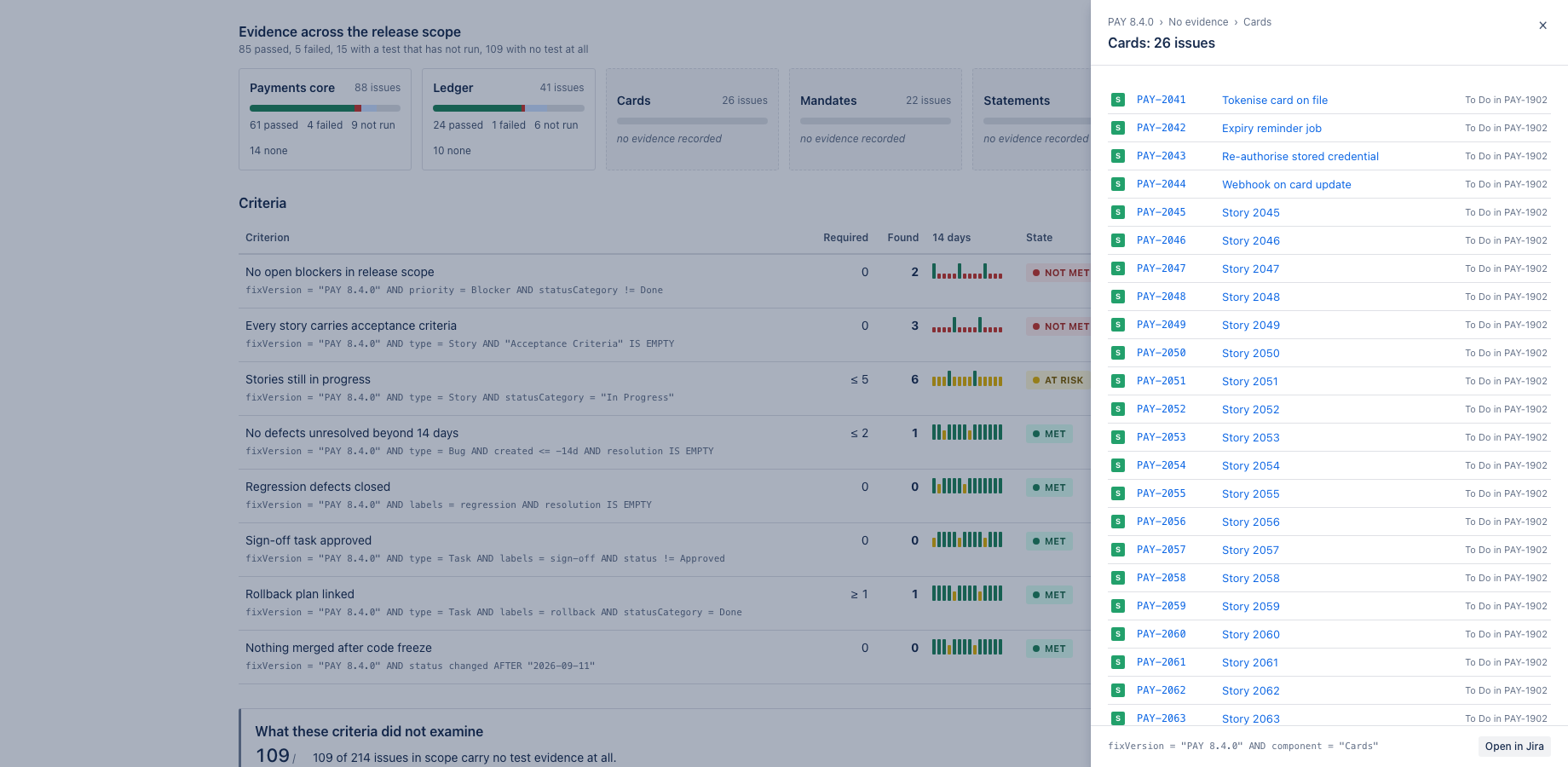
- Click a number to see which criteria or issues are behind it
- Trajectory to release: the state of every criterion per day, from the nightly evaluation
- Evidence across the release scope, grouped by component, epic or issue type
- Criteria: the JQL rule, what was found, a 14 day trend and who is accountable
- View opens the issues behind a criterion; each one links to Jira
- What the criteria did not examine: the scorecard names its own blind spots
- Decision record: bound to a snapshot, locked after submit; a change of mind is a new version
- Record a new version: decision, reasoning and conditions, signed by a release manager
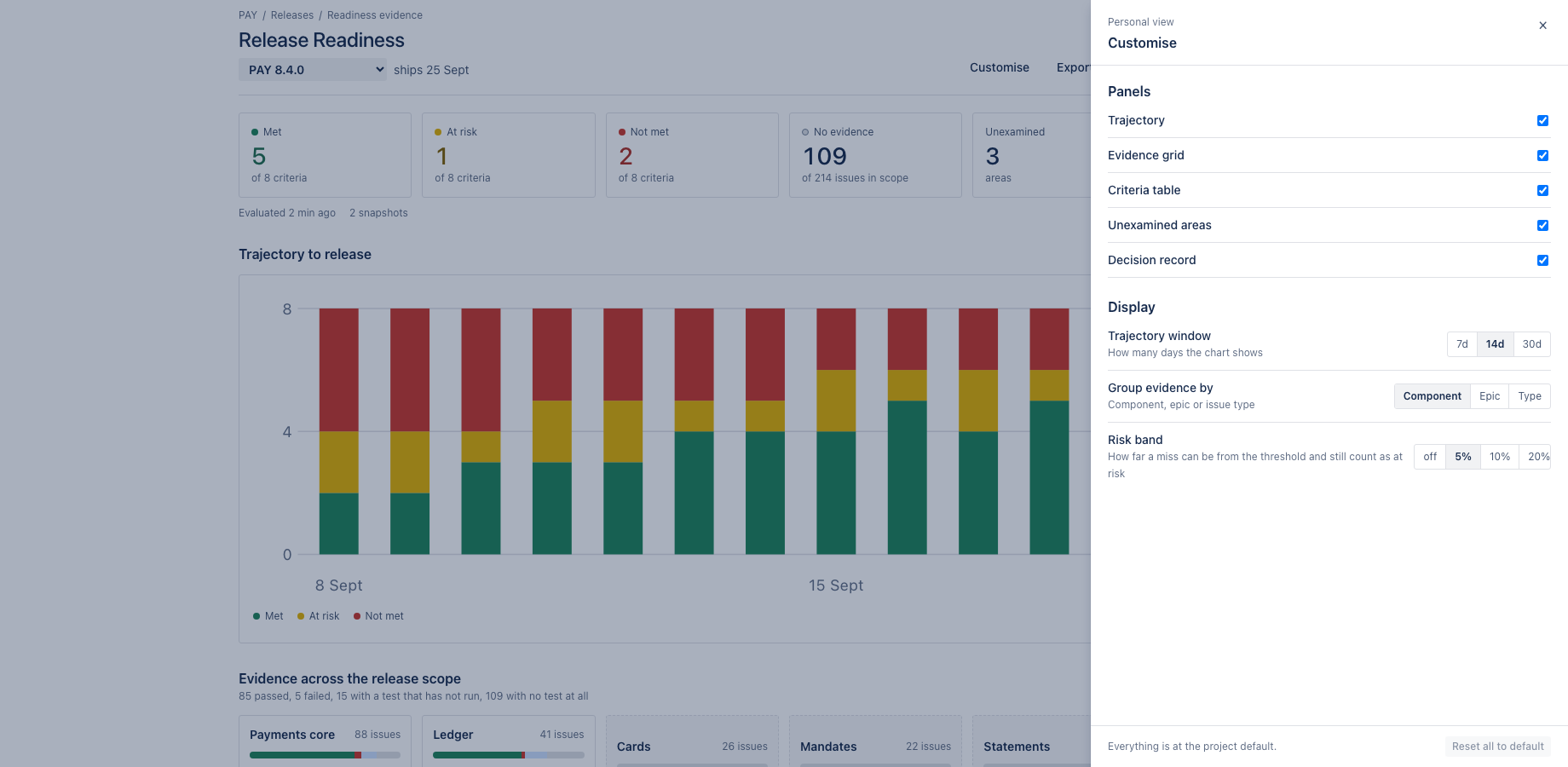
- Customise which panels are shown, capture a snapshot, or export the scorecard as CSV
- Project settings: manage criteria, decision governance and the project defaults
- Each criterion is a JQL rule with a threshold and an accountable role
Verify it works
A short test script. Each step names what to do and what you should see. Together they cover every module of the app.
| # | Do this | Expected result |
|---|---|---|
| 1 | Open the scorecard for a release that has issues assigned to it. | The headline shows criteria met, at risk and not met, plus the count of items with no test evidence and the unexamined topics. |
| 2 | Click a headline number, for example Not met. | A panel lists the criteria or issues behind the number. Each issue key opens in Jira in a new tab. |
| 3 | Scroll to Evidence across the release scope and switch between By component, By epic and By issue type. | The grid regroups. Linked tests show as passed, failed or not run; components without any test are called out separately. |
| 4 | Resolve or link an issue in Jira so that a criterion changes, then reload the scorecard. | The criterion state and the headline update; the 14 day trend keeps the earlier state. |
| 5 | As a member of the release manager role, open Decision record and record a decision with reasoning and conditions. | The record is saved with the signer, the time and a snapshot number, and is locked. Recording again creates version 2; version 1 stays readable. |
| 6 | Open the scorecard as a user who is not in the role. | The decision form is read-only for that user; the scorecard itself is visible. |
| 7 | Open the project the next day. | The Trajectory to release chart has a new point per criterion from the nightly evaluation. |
Screenshots
Permissions and data
Scopes and why
- read:jira-work: read issues, versions, components and links to evaluate criteria and build the evidence grid.
- read:jira-user: show display names of accountable owners and signers; resolve who may sign through project roles.
- storage:app: keep criteria, snapshots, history and decision records on the customer's site.
What the app stores
Criteria (JQL text, thresholds, accountable role), the daily state of each criterion per release for 90 days, the last 50 snapshots, decision records (account ID, display name, role, time, reasoning, conditions) and personal display preferences.
Everything is stored in Forge app storage on your own Atlassian site and removed under the Forge storage lifecycle when you uninstall. The app calls no external service, sends nothing out of Atlassian and uses no analytics. Data residency follows your site.
More in the privacy policy and the security policy for the apps.
Pricing, trial and support
Paid via Atlassian, per user, monthly or yearly, with a 30 day free trial. The current price for your user tier is on the Marketplace listing. Billing, invoices and cancellation run through your Atlassian site administration.
Questions, bugs and feature requests go to contact@toine.com. I answer within two working days, Monday to Friday, CET. Please add your site URL, the app name and a screenshot. Security issues go first: put "security" in the subject line. Terms are on the terms and licence page.