Documentation · Jira Cloud · Toine.com B.V.
Exploratory Sessions for Jira
Write a charter, start the clock, take notes, log findings with the minute they were found, debrief in two minutes. Coverage per area and per charter, the charters nobody explored, and the sessions behind every bug. Stored on your site.
Marketplace listing · 30 day free trial, paid via Atlassian · Support: contact@toine.com · Updated 2026-10-07
What it does
Exploratory Sessions for Jira brings session-based test management to the place where the work already is. It follows the method as testers practise it: a charter says what to explore, with what, to find out what. A session is one tester, one charter, one uninterrupted block of time. At the end, a short debrief. Over time, coverage.
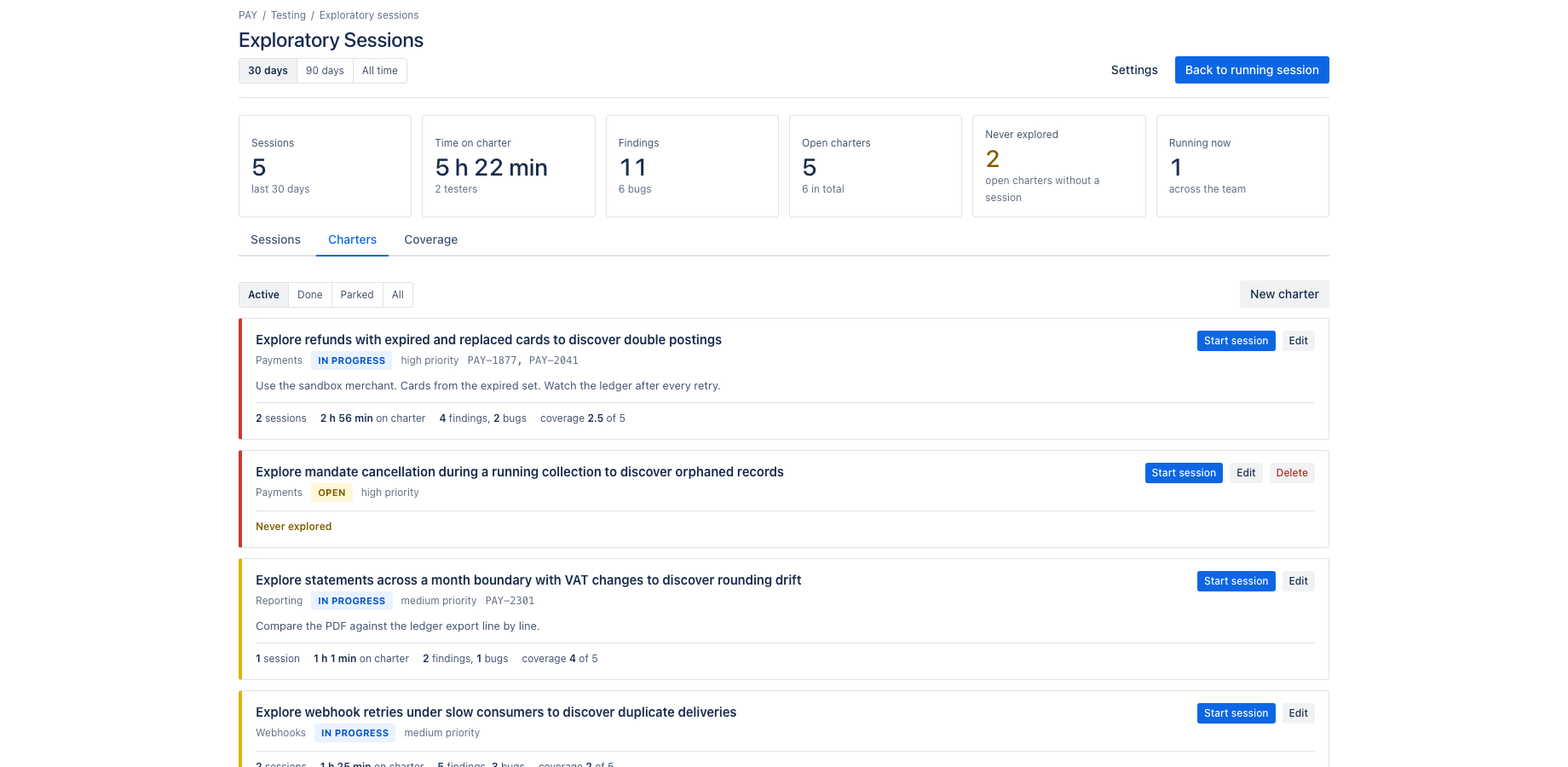
Charters live per project, grouped by area, with a priority, a status and the Jira issues in scope. Anyone on the project can write one.
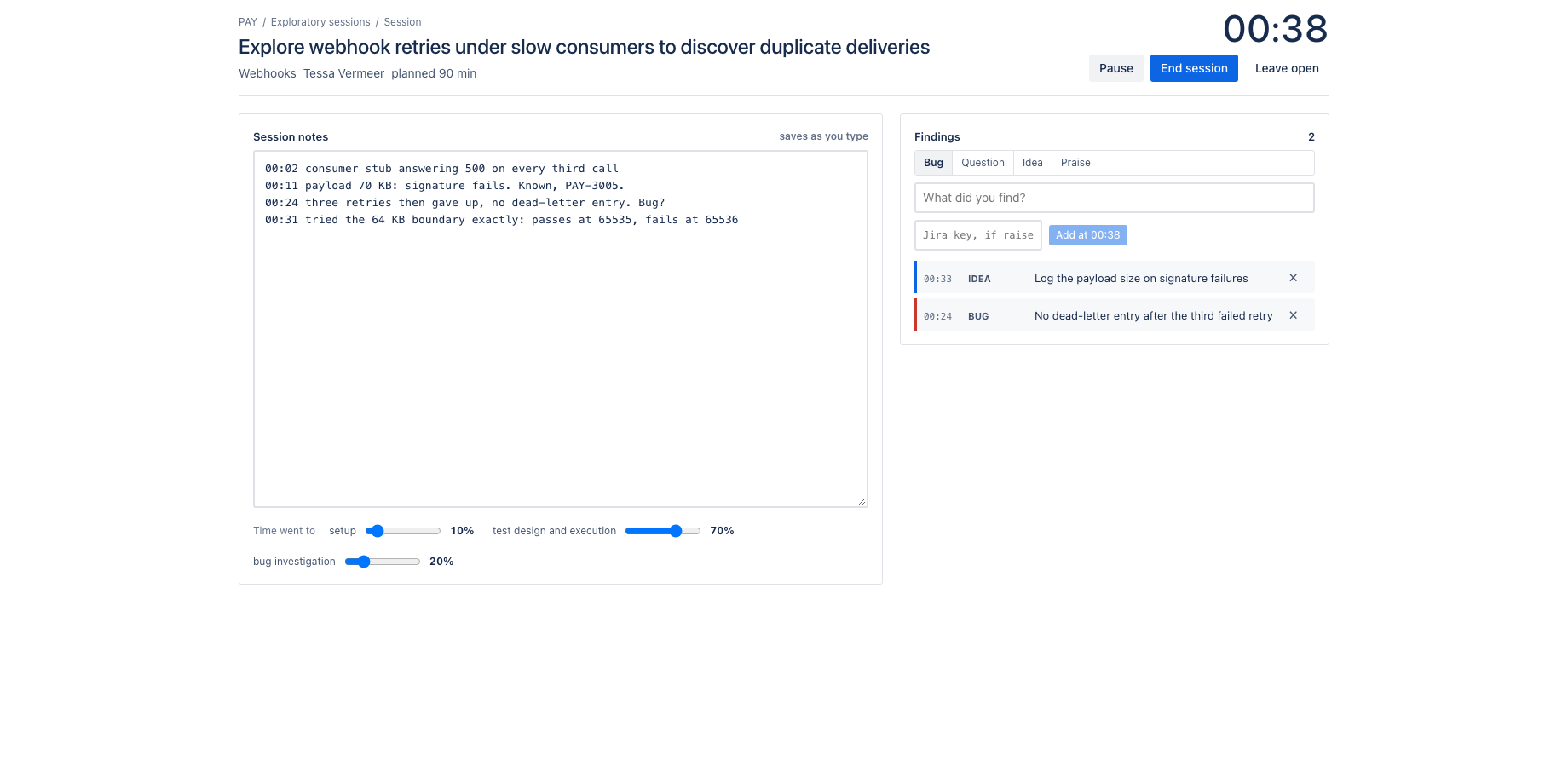
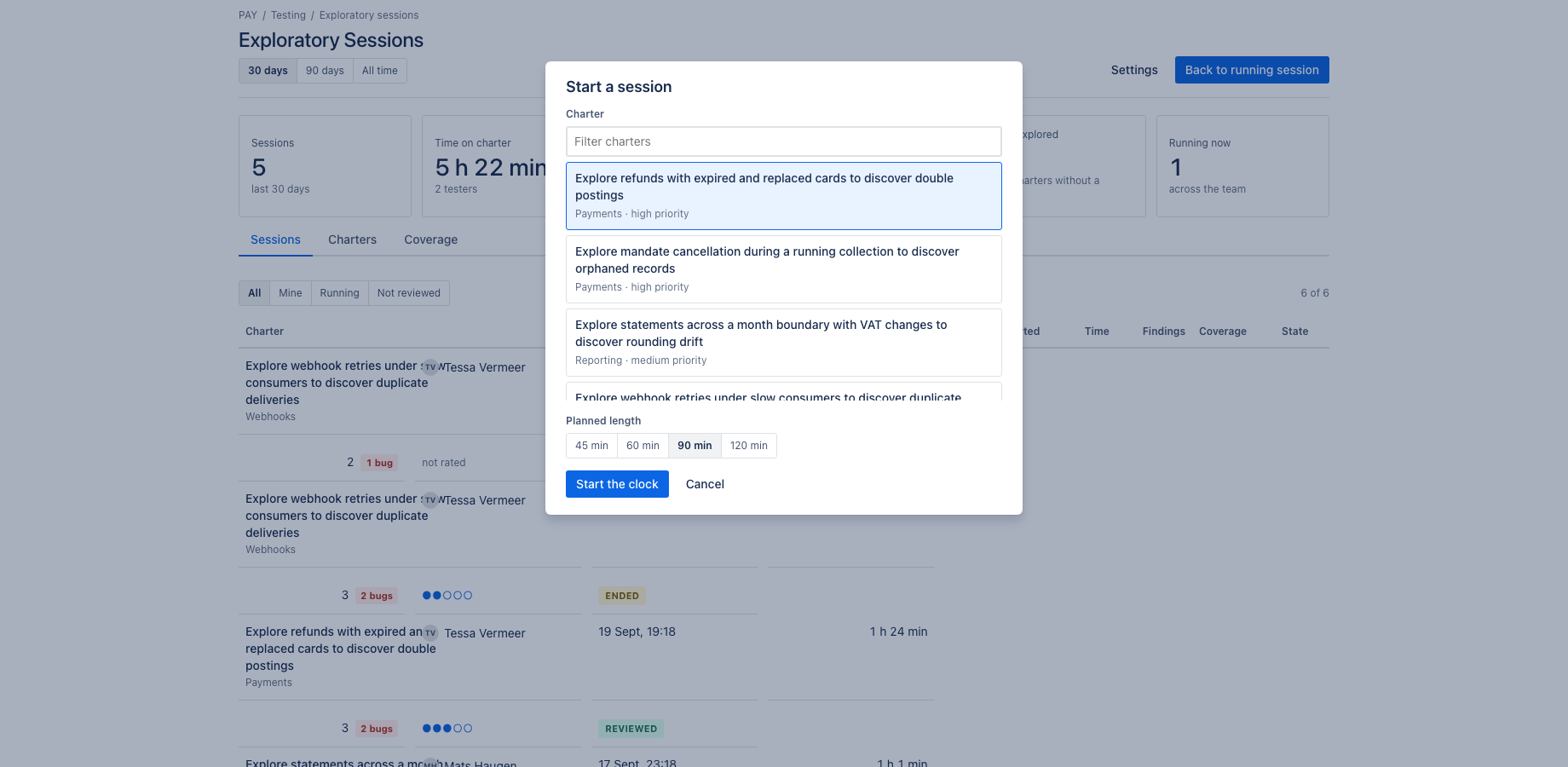
A session starts with one click on a charter. The clock runs, and turns red past the planned length. Notes save as they are typed. Findings are logged as bug, question, idea or praise, each stamped with the minute it was found and, where a tester raised an issue, its Jira key. Three sliders record where the time went: setup, test design and execution, bug investigation. Pause when you are pulled away; resume when you are back.
Works with Jira Cloud, company-managed and team-managed projects.
Demo video
About a minute: the core features and the user flow, recorded in the app's demo mode with sample data from a fictional payments team. Every step carries a caption. Exploratory Sessions: charters, timed sessions and findings for exploratory testing in Jira.
Key features
A session runner built for the clock
One charter, one tester, one block of time. The clock turns red past the planned length. Notes save as you type. A finding takes one line and the minute it was found, with the Jira key if you raised one.
A debrief the reviewer actually reads
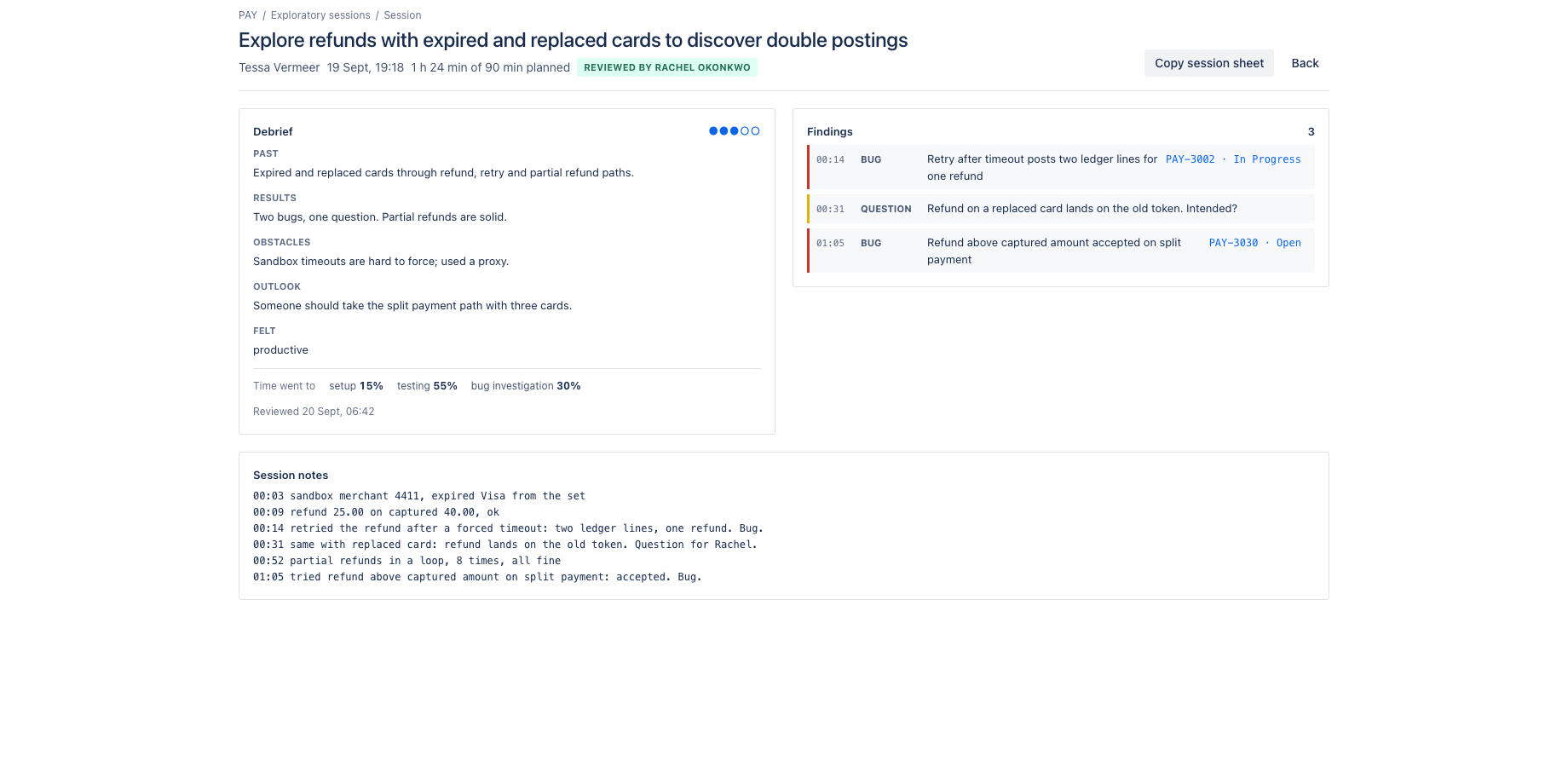
Past, results, obstacles, outlook, a coverage rating and how it felt, in two minutes at the end. A reviewer marks it read. The session sheet copies as plain text for the wiki.
Coverage that shows the gaps
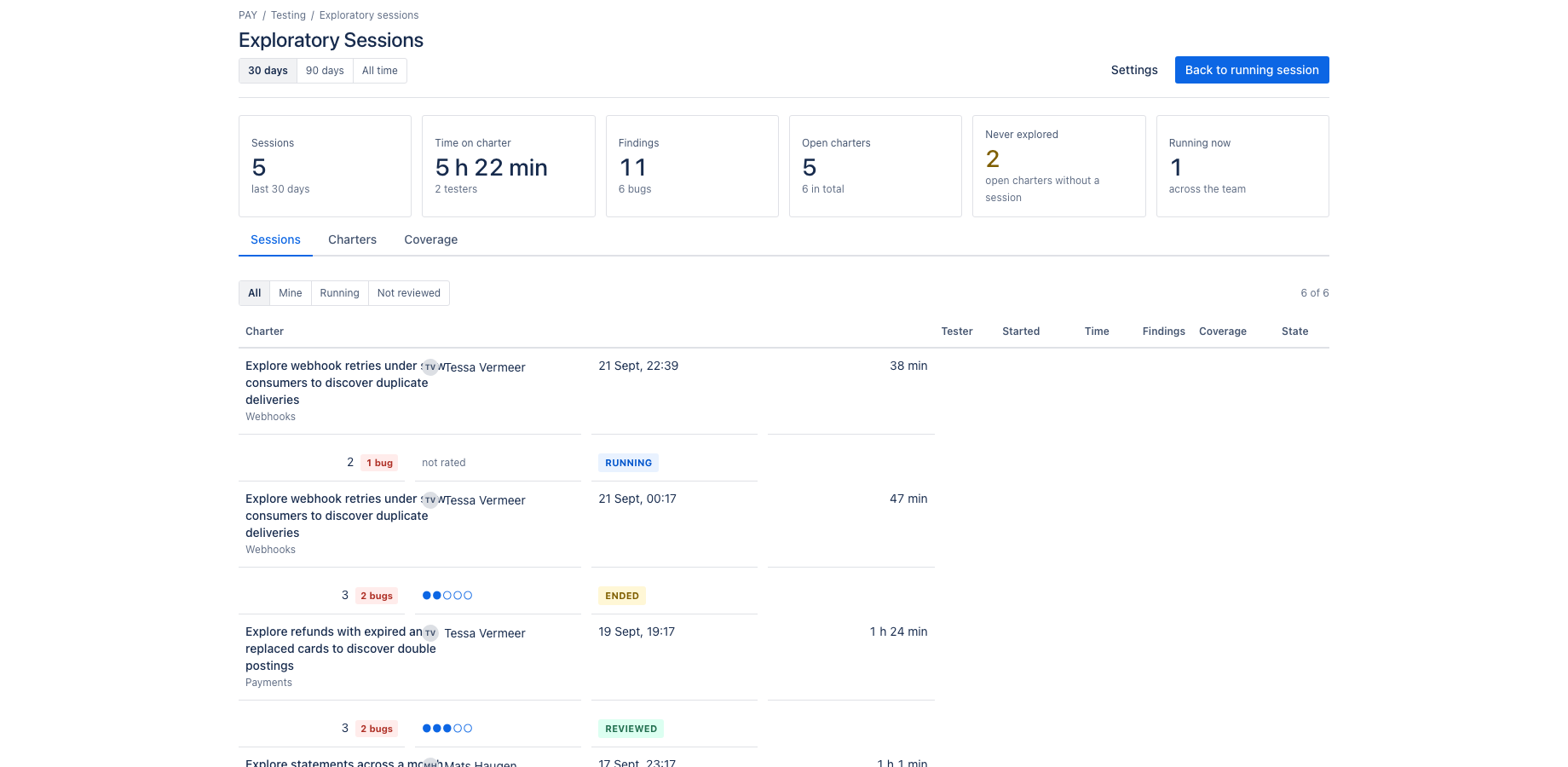
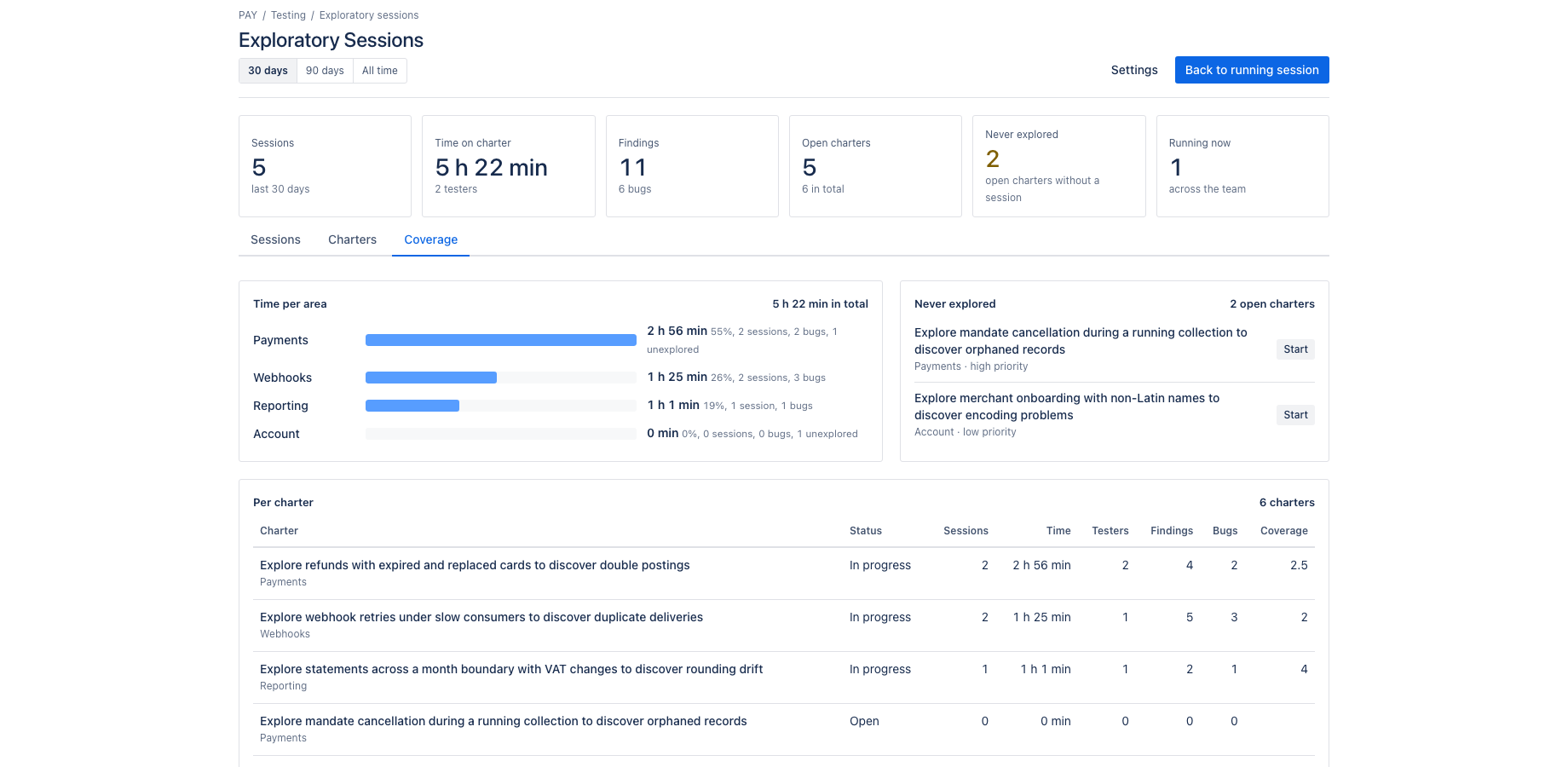
Time per area, sessions and findings per charter, the average coverage rating, and the open charters nobody has explored yet, highest priority first. A dashboard gadget carries the week's numbers.
Ending a session asks for a debrief: what you did, what it produced, what got in the way, what should happen next, and a coverage rating from one to five. A lead marks the session reviewed. The session sheet copies as plain text.
Coverage shows time per area, sessions, testers, findings and bugs per charter, and the open charters that nobody has explored, highest priority first. The issue panel on a Jira issue lists the sessions that recorded a finding against it. The dashboard gadget shows this week against the last thirty days.
What it does not do: it never creates or changes a Jira issue. Testers raise bugs the way they always did and paste the key. It calls no external service and keeps charters, sessions and settings in Forge storage on your site, which is why it qualifies for the Runs on Atlassian programme.
Where it appears in Jira
- Project page
- Exploratory Sessions in the sidebar of every project: sessions, charters and coverage.
- Project settings
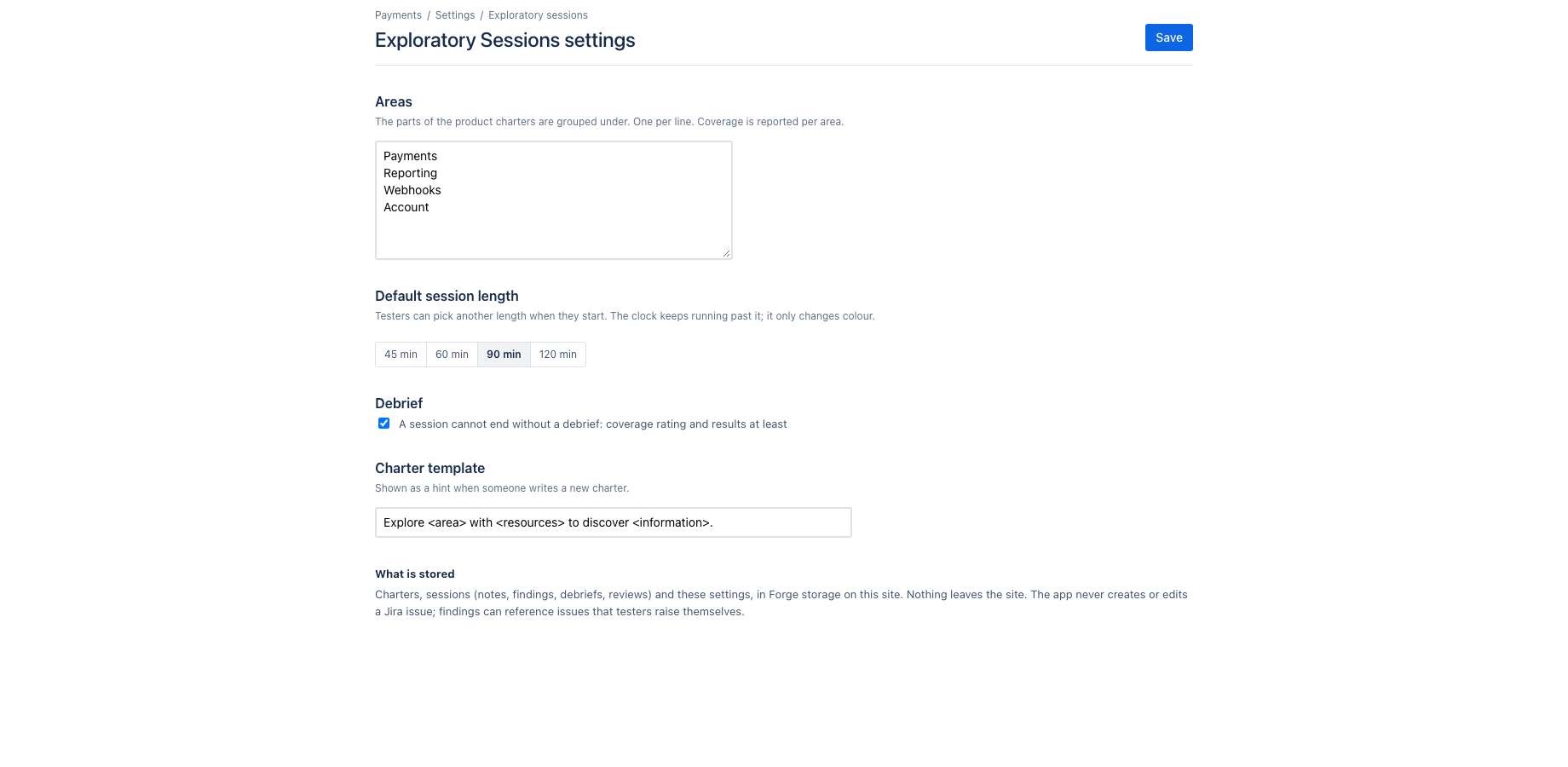
- Project settings, Exploratory Sessions: areas, default session length, debrief questions and the charter template.
- Issue panel
- Exploratory sessions panel on a Jira issue: the sessions that recorded a finding against that issue.
- Dashboard gadget
- Exploratory sessions gadget: sessions, minutes on charter, findings and open charters for one project.
- Global page
- Apps, Exploratory Sessions: across projects.
Install and set up
Before you start
Any Jira project. Charters, sessions and findings live in the app; a finding can carry the key of a Jira issue the tester raised in the normal way.
Install
- In Jira, open Apps in the top bar and choose Explore more apps. Search for Exploratory Sessions for Jira and click Try it free. You need to be a Jira site administrator.
- Review the permissions. The app asks for
read:jira-work,read:jira-user,storage:app. It cannot create, change or delete anything in Jira. - The 30 day trial starts on install. Billing after the trial is per user through Atlassian; nothing is charged if you uninstall before the trial ends.
Set up
- Open a project and click Exploratory Sessions in the sidebar.
- Go to Project settings, Exploratory Sessions. Enter the areas of your product (for example checkout, onboarding, reporting), the default session length and the debrief rule.
- Back on the project page, open Charters and click New charter. Write it as explore an area with resources to discover information, set area and priority, and add the Jira issues in scope.
- Testers click Start session on a charter when they begin.
Using the app
The steps below follow the demo video, in the same order.
- Headline: sessions, time on charter, findings, open charters and what was never explored
- The session list: who tested which charter, for how long, with how many findings
- Charters follow the pattern: explore an area with resources to discover information
- New charter: area, priority, risks to keep in mind and the Jira issues it relates to
- Coverage per area and per charter, so gaps are visible before the release
- The session runner: a clock, notes that save as you type, and findings with a timestamp
- Add a finding: type, text and the Jira key once it is raised
- End session opens the debrief: coverage rating, mood and the PROOF notes
- A finished session becomes a session sheet for review
- Settings: areas, default session length, debrief questions and the charter template
Verify it works
A short test script. Each step names what to do and what you should see. Together they cover every module of the app.
| # | Do this | Expected result |
|---|---|---|
| 1 | Create a charter and start a session from it. | The session runner opens with a running clock. Notes save as you type; reloading the page keeps them. |
| 2 | Add a finding of type bug and paste the key of an existing Jira issue. | The finding is listed with the minute it was found. Open that Jira issue: the Exploratory sessions panel lists this session. |
| 3 | Let the clock run past the planned session length. | The clock turns red. |
| 4 | Click End session and fill in the debrief. | The session appears in the list with its duration, findings and coverage rating. The session sheet copies as plain text. |
| 5 | Open Coverage. | Time per area and findings per charter reflect the session; charters nobody explored are listed highest priority first. |
| 6 | Add the gadget to a dashboard. | It shows this week against the last thirty days for the project. |
Screenshots
Permissions and data
Scopes and why
- read:jira-work: read issue titles and status for the keys a charter or finding references.
- read:jira-user: show tester and reviewer display names.
- storage:app: keep charters, sessions and settings on the customer's site.
What the app stores
Charters, sessions (tester account ID, start and end time, notes, findings with optional Jira keys, debrief), settings per project. No Jira issue content.
Everything is stored in Forge app storage on your own Atlassian site and removed under the Forge storage lifecycle when you uninstall. The app calls no external service, sends nothing out of Atlassian and uses no analytics. Data residency follows your site.
More in the privacy policy and the security policy for the apps.
Pricing, trial and support
Paid via Atlassian, per user, monthly or yearly, with a 30 day free trial. The current price for your user tier is on the Marketplace listing. Billing, invoices and cancellation run through your Atlassian site administration.
Questions, bugs and feature requests go to contact@toine.com. I answer within two working days, Monday to Friday, CET. Please add your site URL, the app name and a screenshot. Security issues go first: put "security" in the subject line. Terms are on the terms and licence page.