Documentation · Confluence Cloud · Toine.com B.V.
Decision Log for Confluence
A Decision log macro keeps numbered records on a page: context, options considered, decision, consequences, owner, date, tags and links. A change of mind is a new record that supersedes the old one. A register lists every record on the site.
Marketplace listing · 30 day free trial, paid via Atlassian · Support: contact@toine.com · Updated 2026-10-07
What it does
Decision Log for Confluence records the decisions a team makes, on the page where the team works, in the shape of an architecture decision record: context, options considered, decision, consequences.
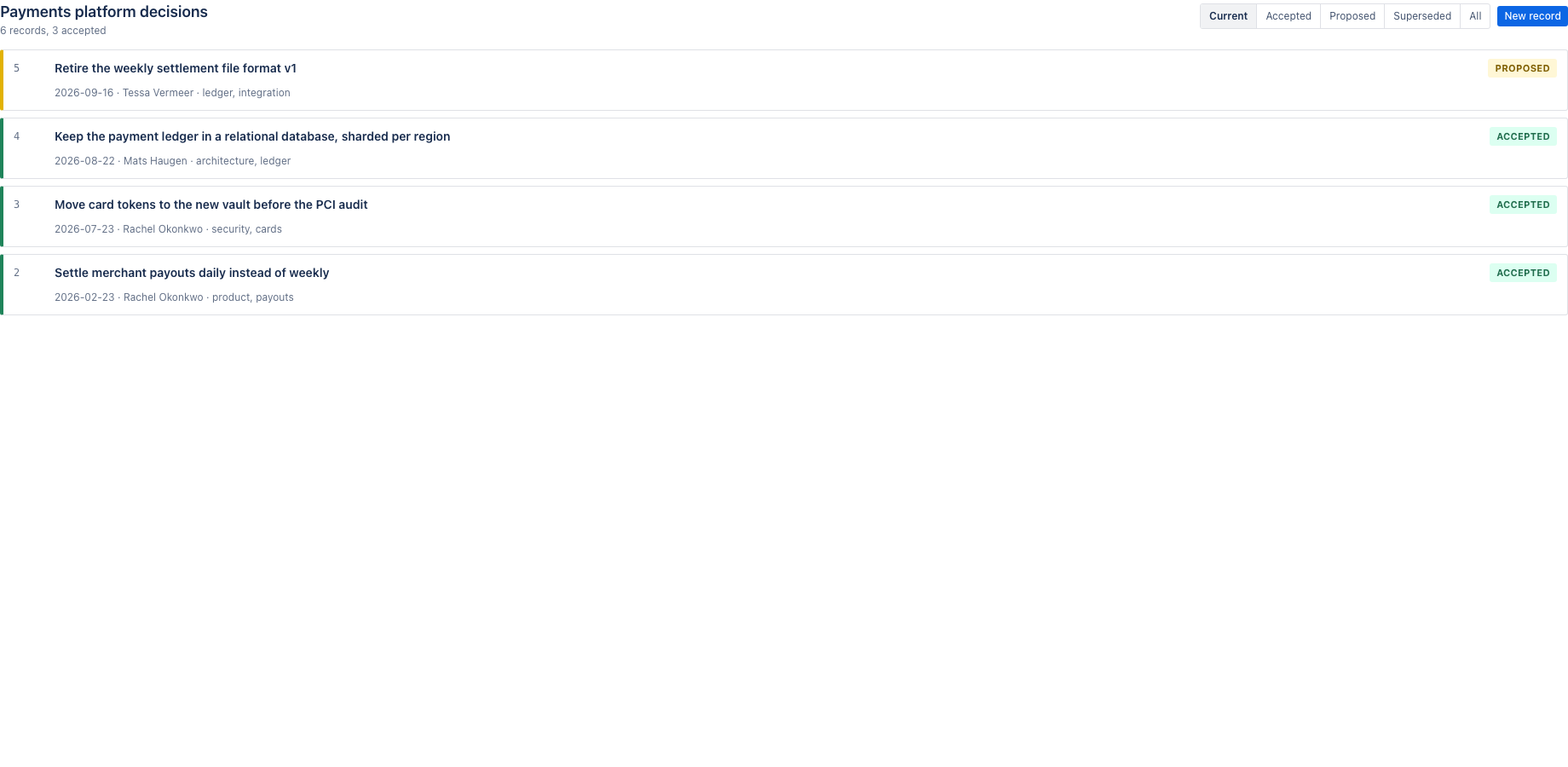
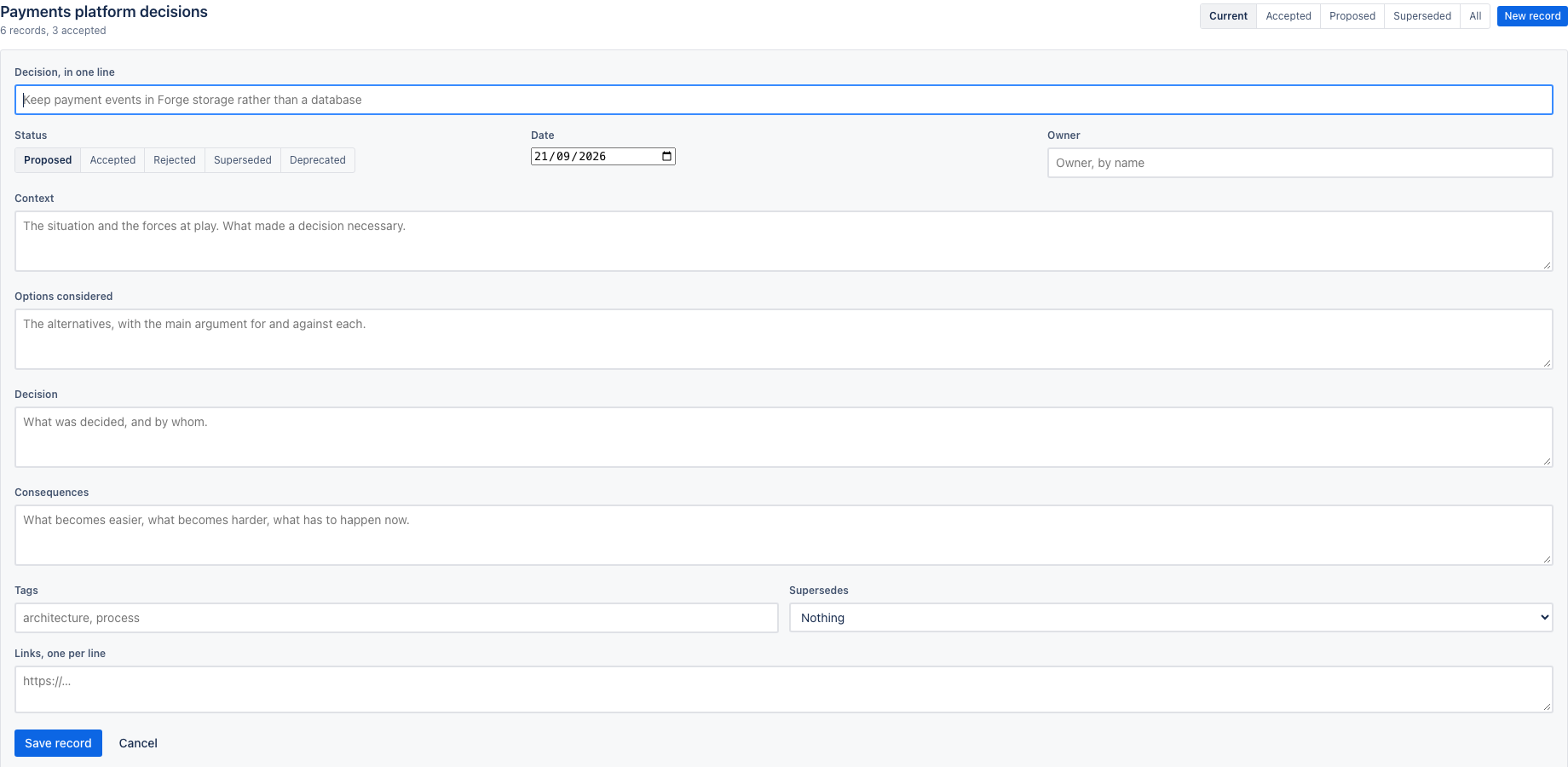
Insert the Decision log macro on a page and give the log a name. Each record has a title in one line, a status (proposed, accepted, rejected, superseded, deprecated), a date, an owner, the four sections, tags and links. Records are numbered in the order they were added. A record that replaces an earlier one is marked as superseding it; the earlier one is marked as superseded, and both stay readable with the chain shown. The log keeps a history of every status change.
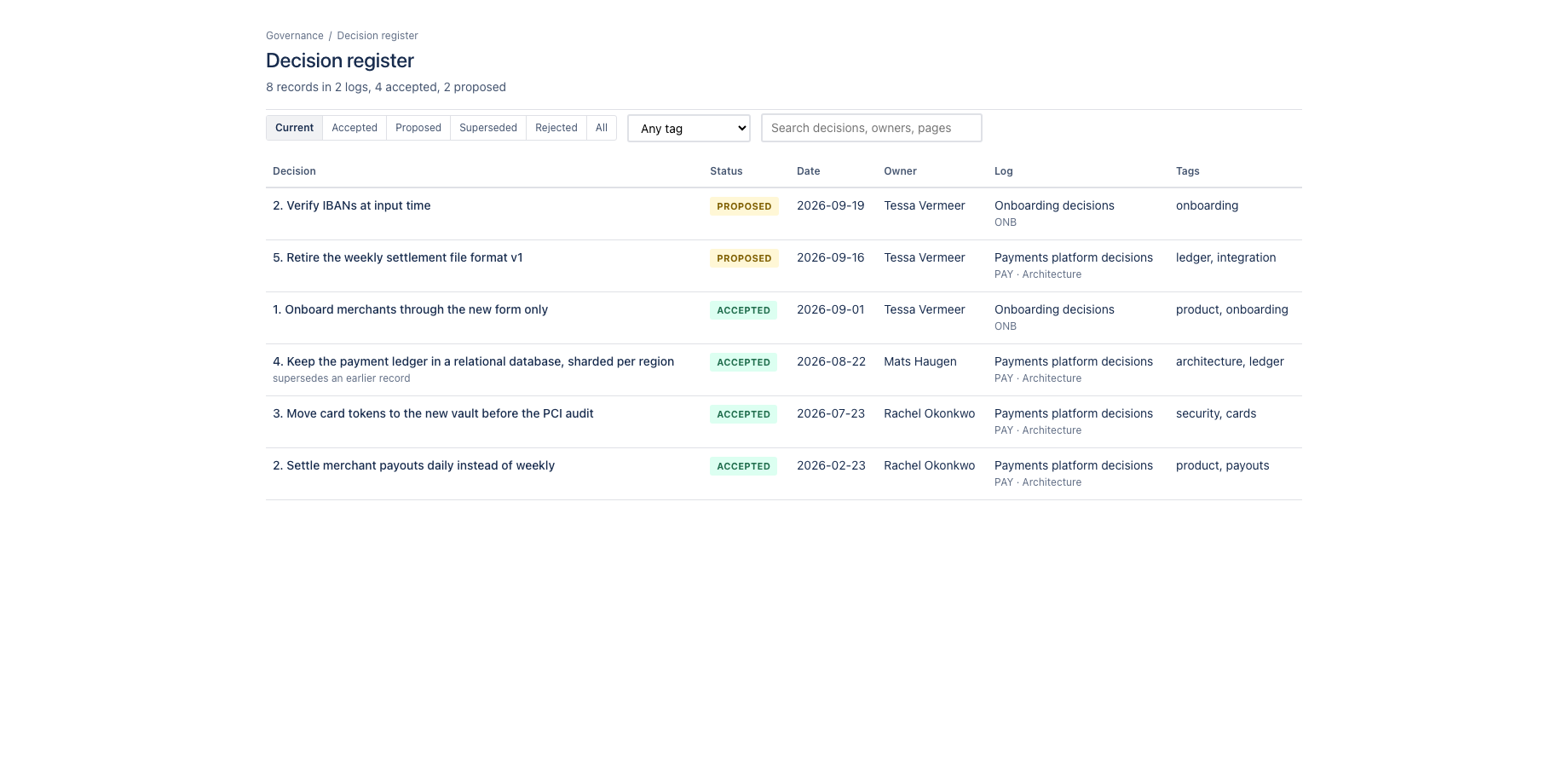
The Decision register under Apps lists every record on the site, newest first, with filters by status and tag and a search across titles, owners and pages. One click opens the page the record lives on.
Works with Confluence Cloud.
Demo video
About a minute: the core features and the user flow, recorded in the app's demo mode with sample data from a fictional payments team. Every step carries a caption. Decision Log: numbered decision records inside a Confluence page, plus a site wide register.
Key features
A record that answers the four questions
What was the situation, what were the options, what did we decide, what follows. Numbered per log, with status from proposed to accepted, an owner, a date, tags and links. Copy any record as Markdown.
Nothing is edited away
A decision that no longer holds is superseded by a new record, and both stay in the log with the chain visible. Rejected and deprecated decisions stay too. Only a proposed record can be deleted.
Every decision on the site, in one register
Every Decision log on every page feeds one register under Apps: filter by status and tag, search by title, owner or page, open the page with one click.
What it does not do: it never edits the page body, it calls no external service, and it keeps records in Forge storage on your site, which is why it qualifies for the Runs on Atlassian programme.
Where it appears in Confluence
- Page macro
- Decision log macro: the log on the page where the team works.
- Global page
- Apps, Decision register: every record on the site, with filters and search.
Install and set up
Before you start
A Confluence page you can edit. One page can hold one log; a site can hold any number of logs.
Install
- In Confluence, open Apps in the top bar and choose Find new apps. Search for Decision Log for Confluence and click Try it free. You need to be a Confluence site administrator.
- Review the permissions. The app asks for
read:confluence-user,read:page:confluence,read:content-details:confluence,storage:app. It never edits a page body. - The 30 day trial starts on install. Billing after the trial is per user through Atlassian; nothing is charged if you uninstall before the trial ends.
Set up
- Edit a Confluence page, type /Decision log and insert the macro. Give the log a name and publish the page.
- Click New record in the macro and fill in the form. Save; the record appears in the log.
- Use the filters above the table to narrow the log, or Copy as Markdown to take a record elsewhere.
- Open Apps, Decision register for every record on the site.
Using the app
The steps below follow the demo video, in the same order.
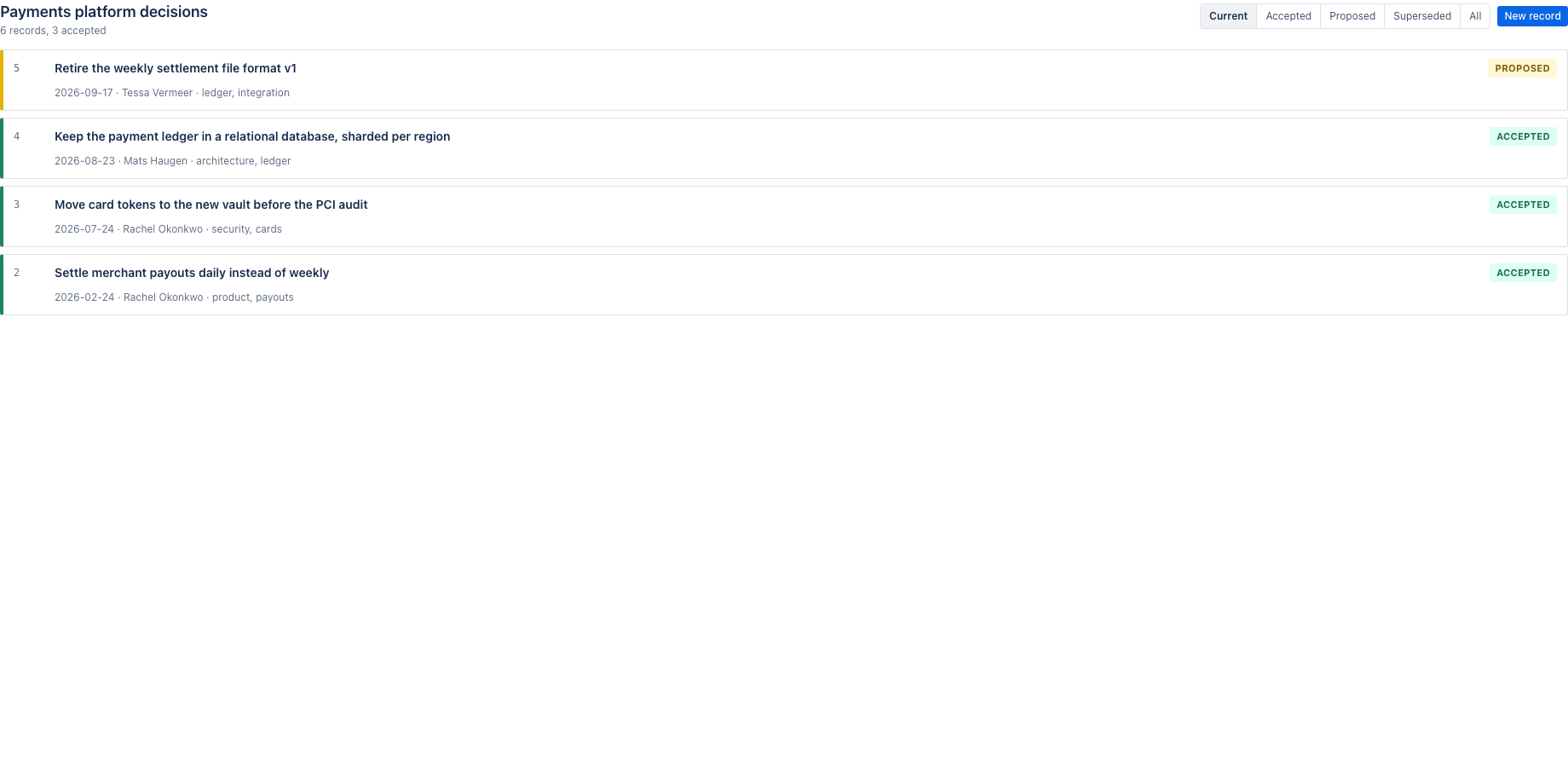
- Filter by status: current, accepted, proposed or superseded
- Open a record: context, options considered, the decision and its consequences
- New record: title, status, owner, tags and the record it supersedes
- Save: the record gets the next number and appears in the log
- The Decision register: every log on the site, with page, owner and status
- Filter by status or tag, search across decisions, owners and pages
Verify it works
A short test script. Each step names what to do and what you should see. Together they cover every module of the app.
| # | Do this | Expected result |
|---|---|---|
| 1 | Insert the Decision log macro, give the log a name and add a record with context, options, decision and consequences. | The record gets number 1 and appears in the log. The page history shows no new page version. |
| 2 | Add a second record and mark it as superseding the first. | The first is marked superseded, the second shows the chain, both stay readable. |
| 3 | Change the status of a record from proposed to accepted. | The history of the record shows the change with who and when. |
| 4 | Open Apps, Decision register. | Both records are listed with page, owner and status; filter by status and search by title or owner work. |
| 5 | Click a record in the register. | The Confluence page the record lives on opens. |
Screenshots
Permissions and data
Scopes and why
- read:confluence-user: find owners by name and show display names.
- read:page:confluence and read:content-details:confluence: show page titles in the register and search users.
- storage:app: keep logs on the customer's site.
What the app stores
Decision records (title, status, date, owner account ID and display name, context, options, decision, consequences, tags, links, supersedes chain, history) per log, with the page ID the log lives on.
Everything is stored in Forge app storage on your own Atlassian site and removed under the Forge storage lifecycle when you uninstall. The app calls no external service, sends nothing out of Atlassian and uses no analytics. Data residency follows your site.
More in the privacy policy and the security policy for the apps.
Pricing, trial and support
Paid via Atlassian, per user, monthly or yearly, with a 30 day free trial. The current price for your user tier is on the Marketplace listing. Billing, invoices and cancellation run through your Atlassian site administration.
Questions, bugs and feature requests go to contact@toine.com. I answer within two working days, Monday to Friday, CET. Please add your site URL, the app name and a screenshot. Security issues go first: put "security" in the subject line. Terms are on the terms and licence page.