Documentation · Jira Cloud · Toine.com B.V.
Created vs Resolved for Jira
Created against resolved per week or month, the open backlog drawn as a line across the bars, the net change per period, and a straight answer on whether the backlog is growing, flat or shrinking.
Marketplace listing · 30 day free trial, paid via Atlassian · Support: contact@toine.com · Updated 2026-10-07
What it does
Created vs Resolved for Jira answers the oldest question in any backlog: are we keeping up?
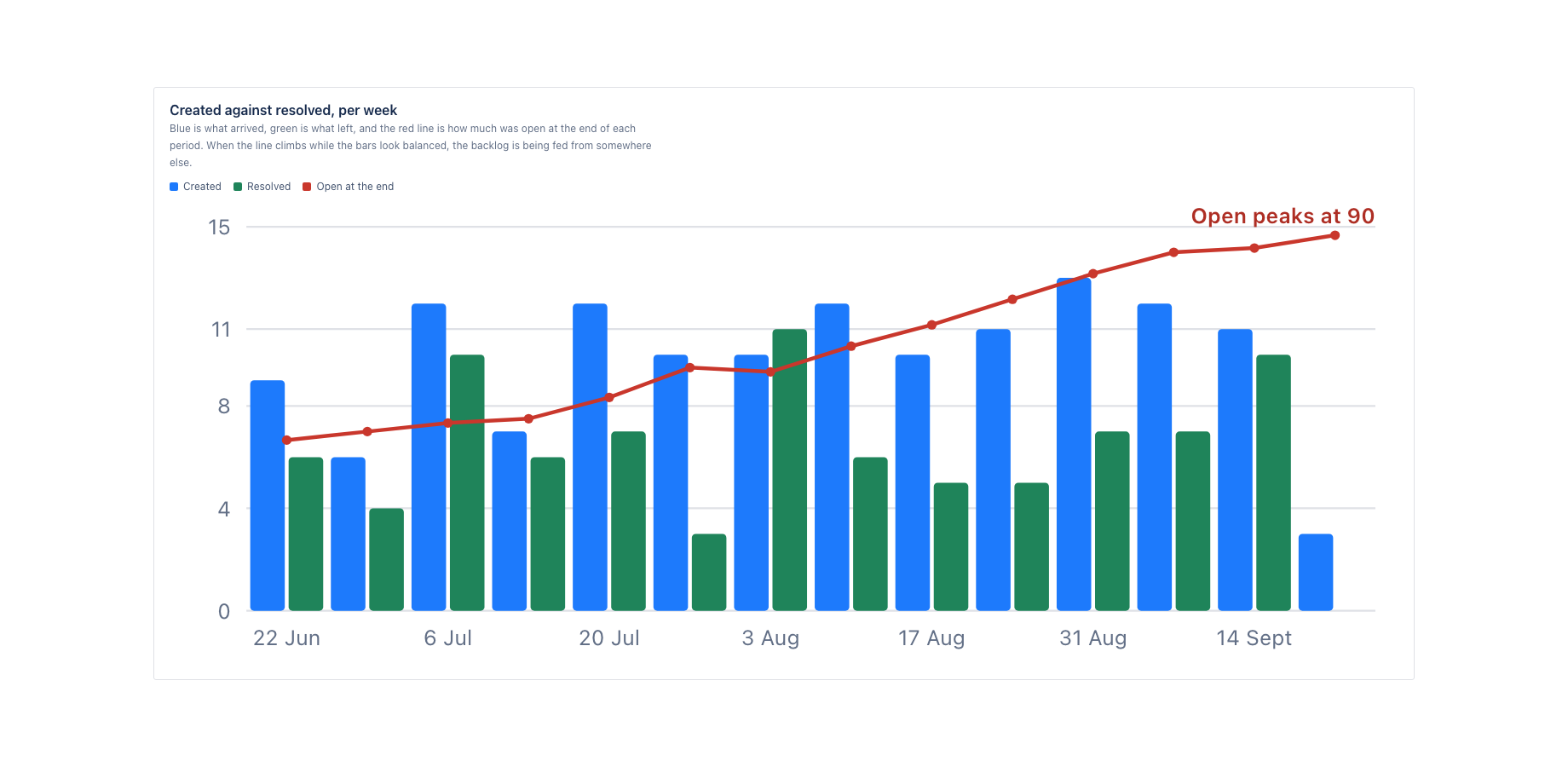
Blue bars for what arrived in each period, green bars for what left, and a red line across them for how many work items were still open at the end of each one. That line is the point. A team can close exactly as many items as arrive and still watch its backlog climb, because the arithmetic that matters happened before the window started, and only the line shows it.
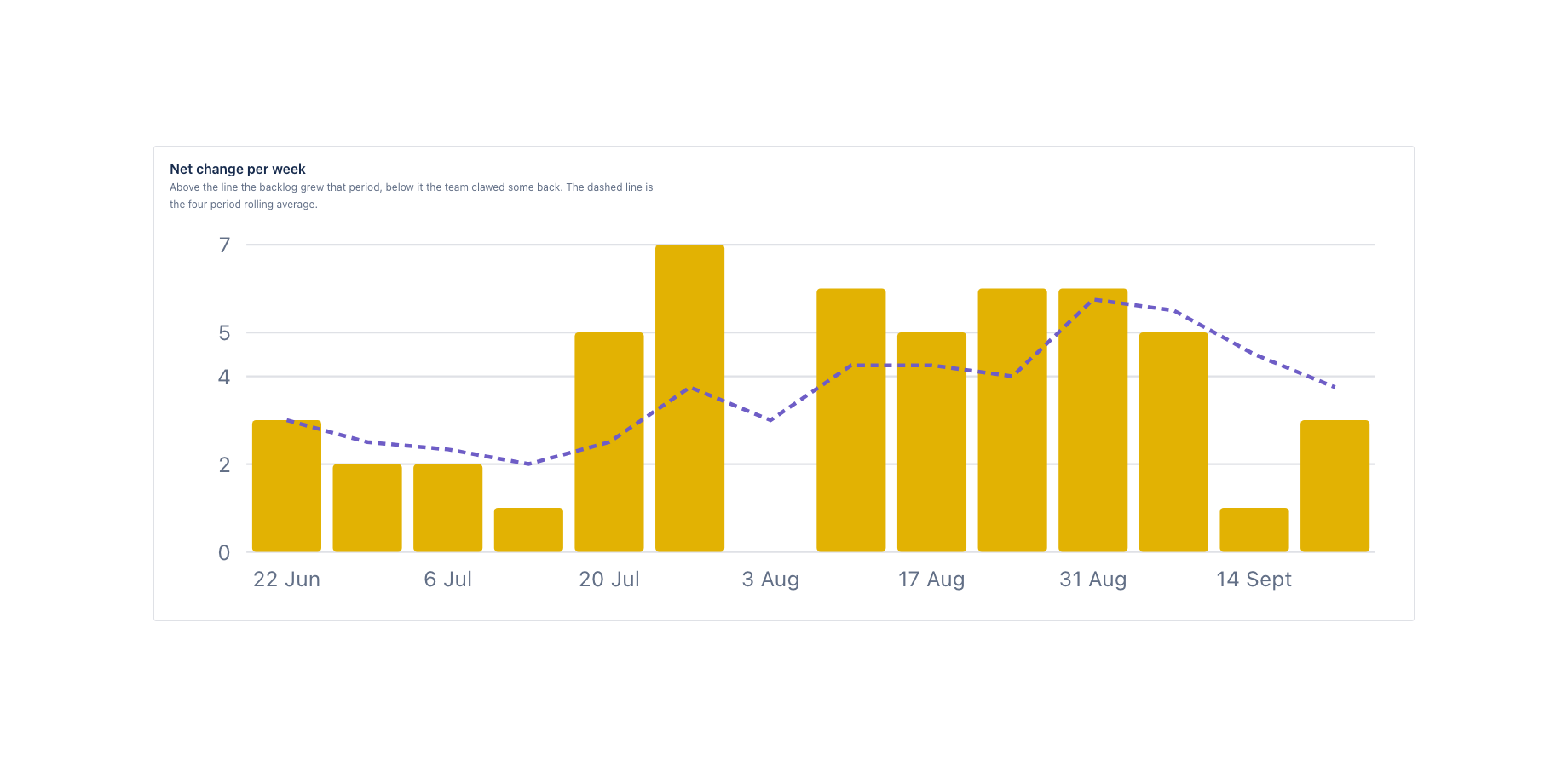
The net change per period is drawn on its own underneath, with a four period rolling average, so a single bad fortnight is not mistaken for a trend. Above it sits the trend itself: the slope of the open backlog across the whole window, reported in plain words as growing, flat or shrinking, with the change per period next to it. When there is not enough history to call it, the app says so instead of fitting a line to nothing.
Works with Jira Cloud, company-managed and team-managed projects, and with any issue type: service requests, bugs, stories or all of them together.
Demo video
About a minute: the core features and the user flow, recorded in the app's demo mode with sample data from a fictional payments team. Every step carries a caption. Created vs Resolved: does more work arrive than leave, with the open backlog running through it.
Key features
The backlog line through the bars
Bars alone hide the thing that matters. The open count at the end of every period is drawn across them, so a backlog that climbs while the bars look balanced is visible instead of arguable.
A trend, not an impression
The slope of the open backlog across the whole window, reported as growing, flat or shrinking with the change per period. No squinting at bars to decide whether last month was better.
Which work type is feeding it
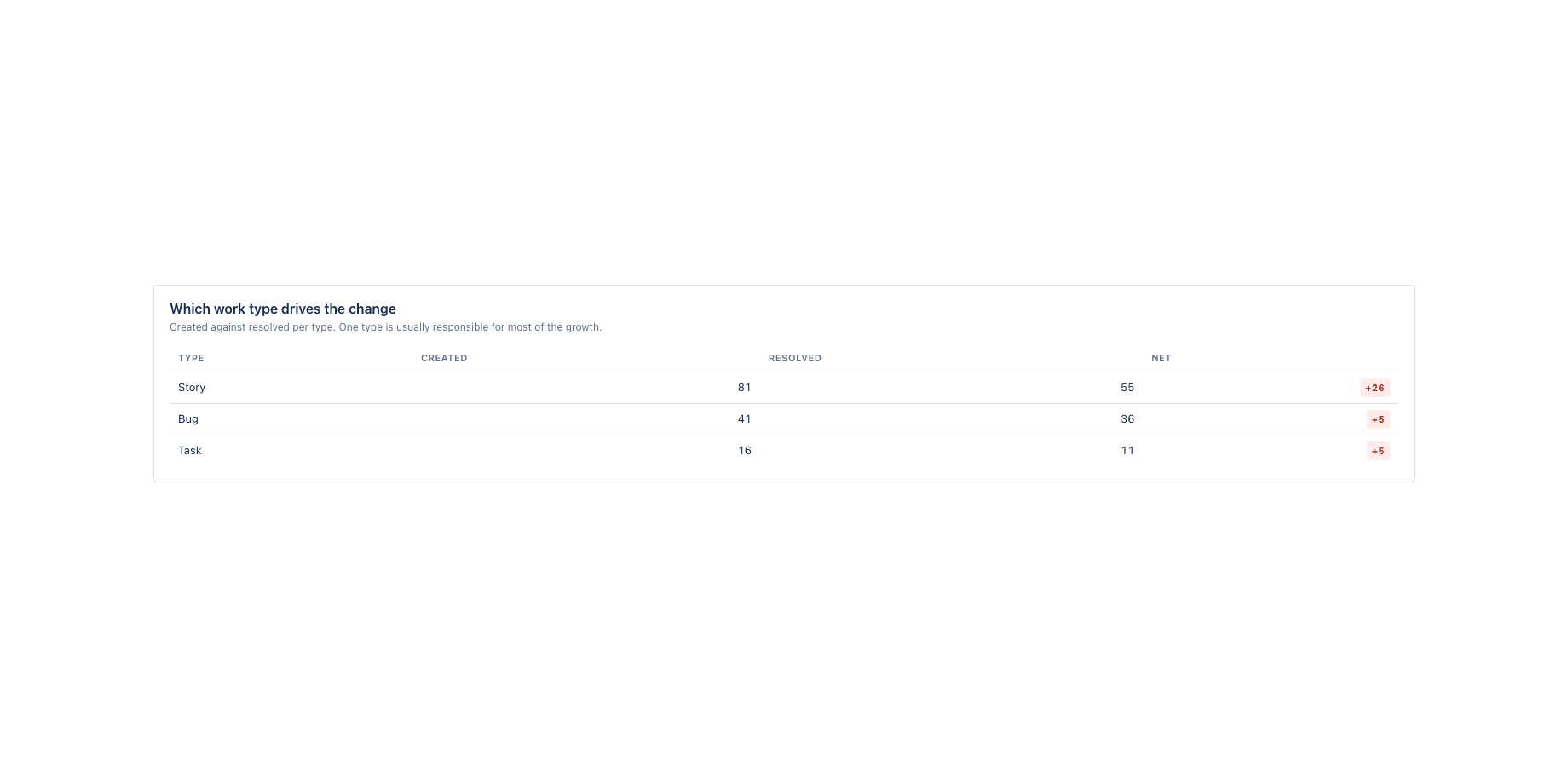
Created against resolved per work type, so the growth can be pinned on the one type responsible rather than spread across a feeling that there is simply too much work.
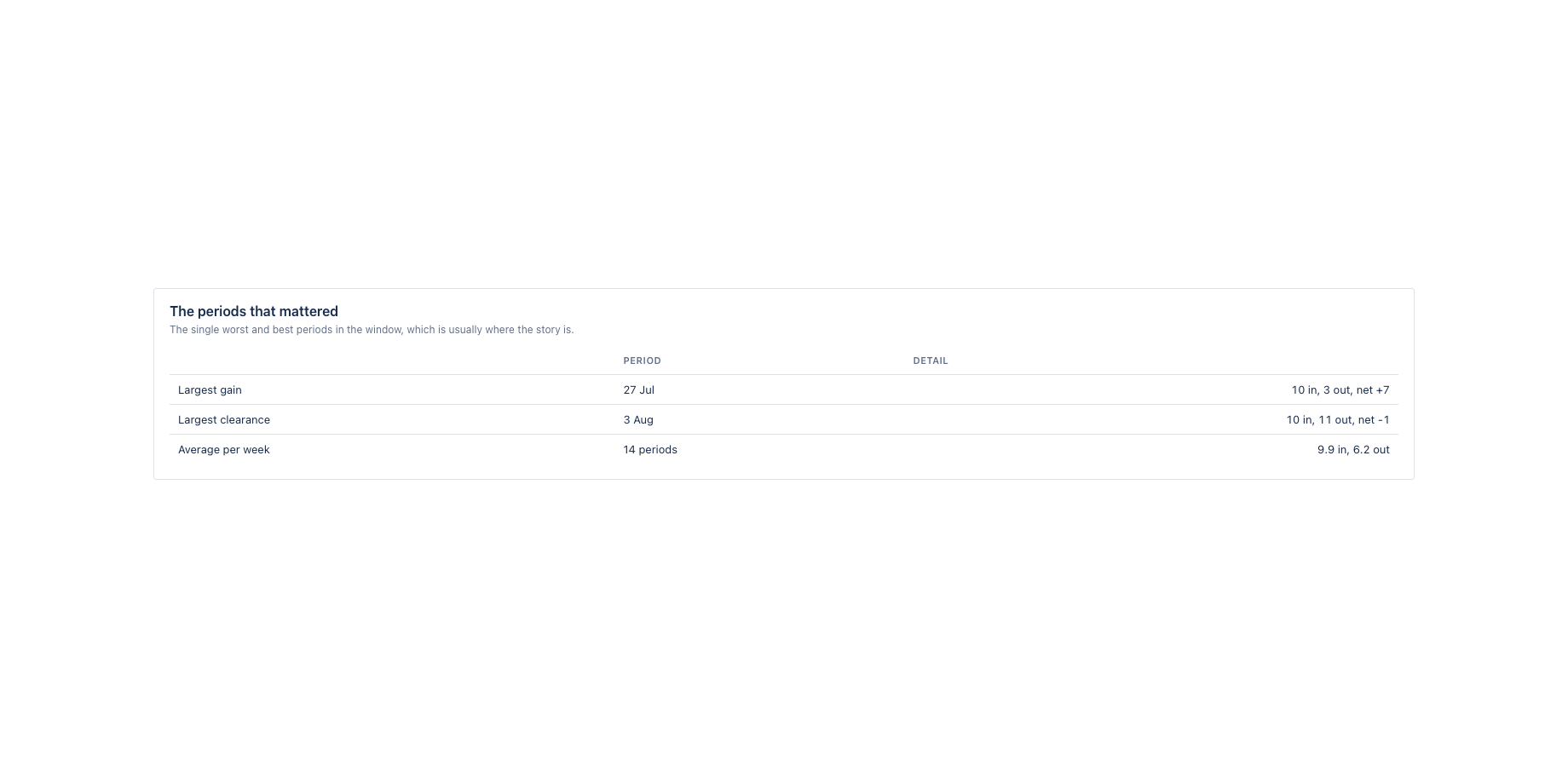
The clearance rate says what share of the incoming work was actually cleared. The best and worst periods in the window are named, because the story is usually in one of them. Created against resolved is broken down per work type, which is how growth stops being a vague complaint about volume and becomes a specific statement about bugs, or support requests, or whatever the real source is.
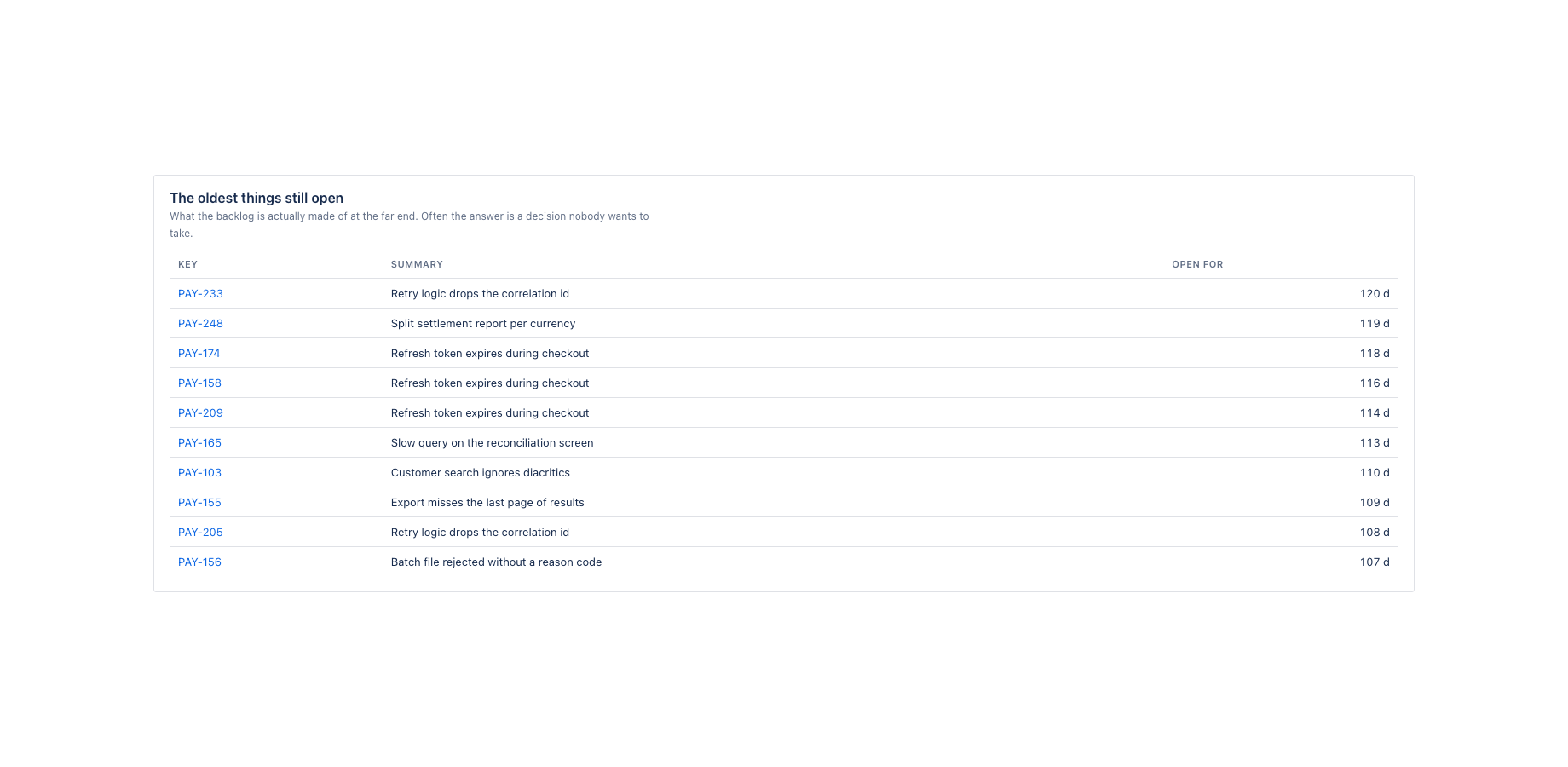
The ten oldest things still open are listed with how long they have been open, which is what the far end of a backlog is actually made of. Usually it is a decision nobody wants to take.
Every bar opens the work items behind it, on the page first and in Jira with one click.
Scope is a project or any JQL query, over 30, 60, 90, 180 or 365 days, grouped by week or by month.
Where it appears in Jira
- Project page
- Created vs resolved in the sidebar of every project.
- Global page
- Apps, Created vs Resolved: a project key or any JQL query, across projects.
- Dashboard gadget
- Created vs Resolved gadget with the headline numbers for one project or JQL query.
Install and set up
Before you start
A Jira project with work items that moved into a status of the In Progress category and on to a Done status inside the window you choose. New or empty projects show the page with a clear message that there is no finished work yet.
Install
- In Jira, open Apps in the top bar and choose Explore more apps. Search for Created vs Resolved for Jira and click Try it free. You need to be a Jira site administrator.
- Review the permissions. The app asks for
read:jira-work,read:jira-user,storage:app. It cannot create, change or delete anything in Jira. - The 30 day trial starts on install. Billing after the trial is per user through Atlassian; nothing is charged if you uninstall before the trial ends.
Set up
- Open a Jira project. In the project sidebar, click Created vs resolved. The page computes straight away from the status history Jira already keeps; there is no sync or import step.
- At the top of the page choose the window (30, 60, 90, 180 or 365 days) and the grouping (week or month). The choice is remembered per project.
- For a view across projects, open Apps in the top bar and choose Created vs Resolved. Enter a project key or any JQL query.
- For a dashboard, open a Jira dashboard, click Edit, then Add gadget, search for Created vs Resolved and add it. Set the project or JQL in the gadget configuration.
Using the app
The steps below follow the demo video, in the same order.
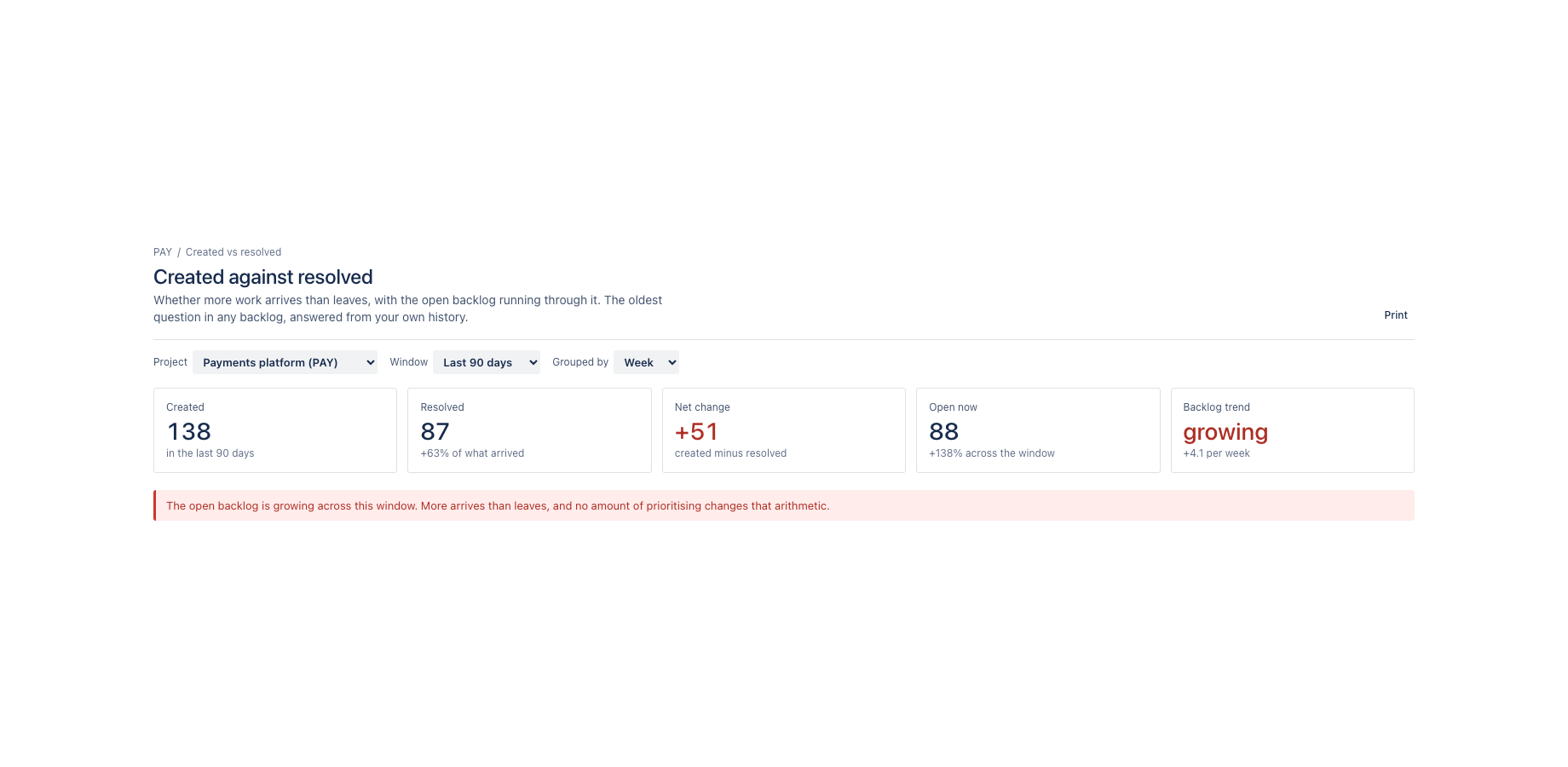
- Choose the project, the window and the grouping; everything on the page recomputes
- Headline: created, resolved, net change, open now and the backlog trend
- Created against resolved per period, with the open backlog drawn as a line across the bars
- Net change per period with a rolling average, and the periods that mattered most
- Which work type drives the change, and the oldest things still open
- Every list opens the same selection in Jira, and the page prints cleanly for a report
Verify it works
A short test script. Each step names what to do and what you should see. Together they cover every module of the app.
| # | Do this | Expected result |
|---|---|---|
| 1 | Open the Created vs resolved tab on a project. | Blue bars for created, green bars for resolved per period, a red line for the open backlog at the end of each period, and a verdict: growing, flat or shrinking. |
| 2 | Click a created bar. | The work items created in that period; the count matches project = KEY AND created >= "start" AND created < "end". |
| 3 | Create two new issues and reload. | The current period's created bar and the backlog line go up by two; the net change is shown underneath. |
| 4 | Switch grouping from week to month. | Bars regroup; the rolling average is now over four months. |
| 5 | Open By work type. | Created against resolved per issue type; the type driving the change is visible. |
| 6 | Pick a 30 day window on a quiet project. | The verdict says there is not enough history to call a trend instead of fitting a line. |
Screenshots
Permissions and data
Scopes and why
- read:jira-work: read work items and their changelog to count what was created and what reached a done status in each period.
- read:jira-user: show assignee display names.
- storage:app: keep the chosen project, window and grouping per project on the customer's site.
What the app stores
The chosen project, window and grouping per project. No work item content.
Everything is stored in Forge app storage on your own Atlassian site and removed under the Forge storage lifecycle when you uninstall. The app calls no external service, sends nothing out of Atlassian and uses no analytics. Data residency follows your site.
More in the privacy policy and the security policy for the apps.
Pricing, trial and support
Paid via Atlassian, per user, monthly or yearly, with a 30 day free trial. The current price for your user tier is on the Marketplace listing. Billing, invoices and cancellation run through your Atlassian site administration.
Questions, bugs and feature requests go to contact@toine.com. I answer within two working days, Monday to Friday, CET. Please add your site URL, the app name and a screenshot. Security issues go first: put "security" in the subject line. Terms are on the terms and licence page.